
AI clients
AI assistants such as Claude or VS Code can work with your Macro Deck setup through the Model Context Protocol (MCP): look at your profiles, folders, buttons, scripts and automations, build new ones, and run actions. They never see your secrets. Everything is set up in Settings > AI clients.
Only apps on the same computer as Macro Deck can connect.
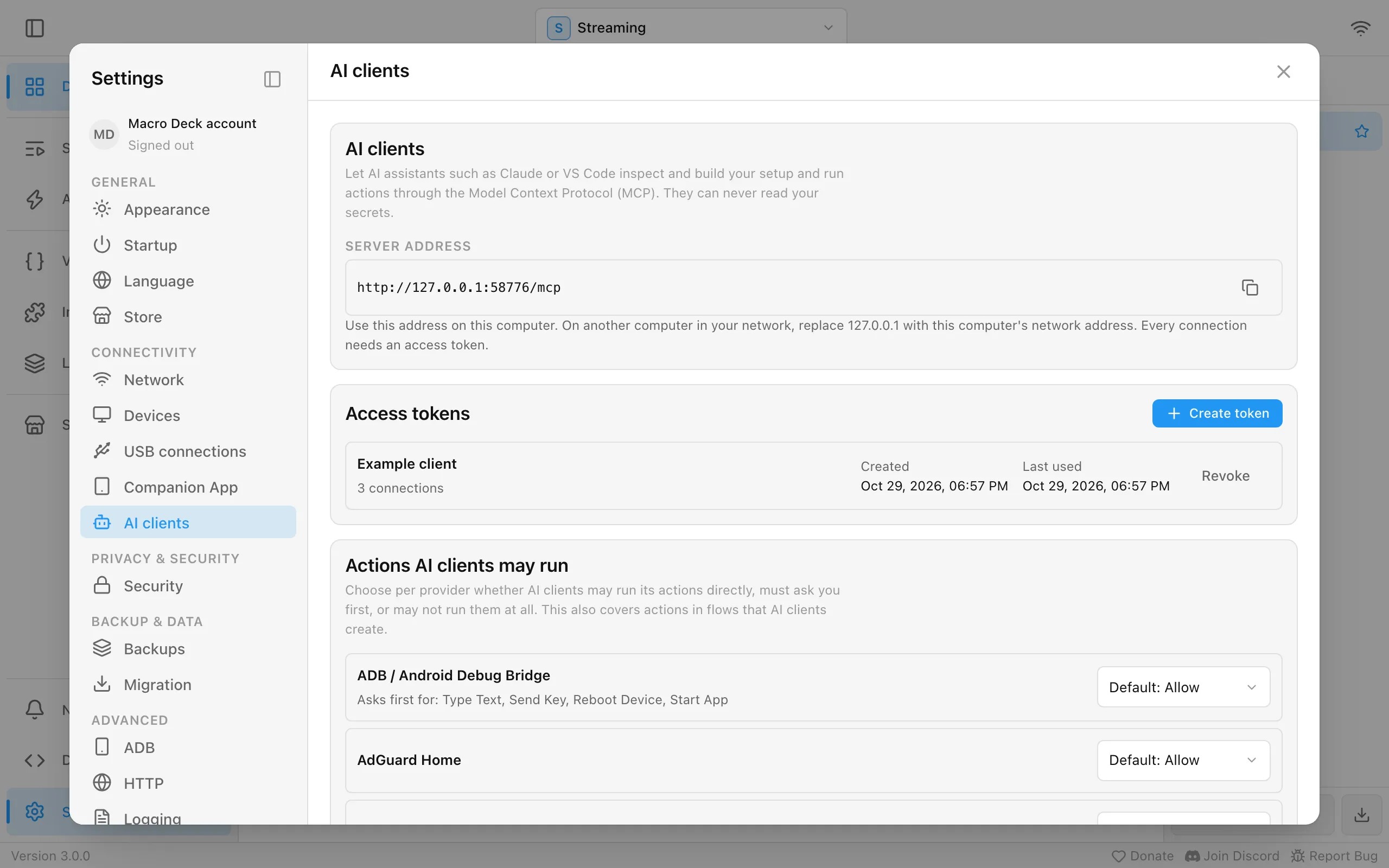
Create an access token
Section titled “Create an access token”Every AI client connects with an access token.
- Open Settings > AI clients and choose Create token under Access tokens.
- Give it a name you will recognize later, such as the client or computer it is for, and choose Create.
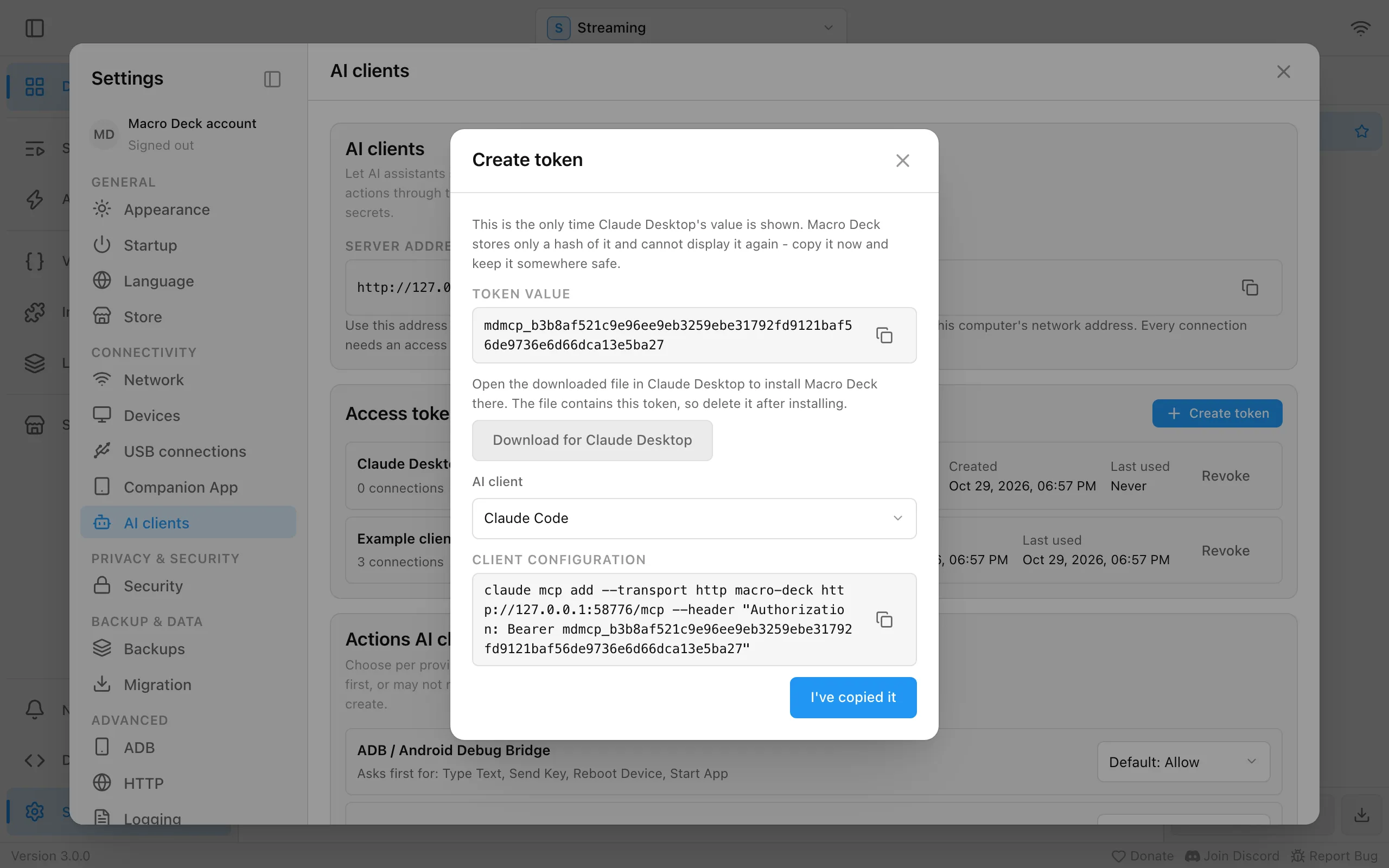
- Macro Deck shows the token value once. Connect your client now, as described below, then choose I’ve copied it.
Macro Deck keeps only a fingerprint of the token, so it cannot show the value again. If you lose it, create a new token. A token does not expire; it works until you revoke it.
Connect Claude Desktop
Section titled “Connect Claude Desktop”While the new token is shown, choose Download for Claude Desktop and save the file macro-deck.mcpb. Open it, for example by double-clicking it, and Claude Desktop installs Macro Deck
as an extension. Macro Deck must be running whenever Claude uses it.
The button appears only when Macro Deck runs as the installed app on macOS or Windows, the systems Claude Desktop runs on.
The file contains the token. Delete it once the extension is installed, and if you shared it with anyone, revoke the token.
The extension keeps working when Macro Deck restarts on a different port. After you revoke its token, it stops working: create a new token and install the extension again from the new download.
Connect Claude Code, VS Code and other clients
Section titled “Connect Claude Code, VS Code and other clients”While the new token is shown, choose your client under AI client, then copy Client configuration:
- Claude Code: a
claude mcp addcommand. Run it in a terminal. - VS Code: an entry for your
mcp.json. Paste it into the file, or merge itsserversentry into the one that is already there. - Other clients: an
mcpServersentry that most other MCP clients accept in their configuration file.
Macro Deck never edits a client’s configuration for you.
These configurations contain the address under Server address, which uses the port shown in Settings > Network. It stays the same until you change that port.
To use an AI client on another computer in your network, replace 127.0.0.1 in the configuration with
the network address of the computer running Macro Deck, and allow Macro Deck through its firewall as for
your other devices. The access token is what keeps other people in your network out, so treat it like a
password. On a network you do not trust, connect only clients on this computer.
What an AI client can and cannot do
Section titled “What an AI client can and cannot do”An AI client can read your setup, create and change widgets, folders, profiles, scripts and automations, run actions and scripts, and trigger events. It cannot:
- read a secret, a password, a backup or its recovery key, or the settings of an integration;
- run an action of a provider that is set to Off.
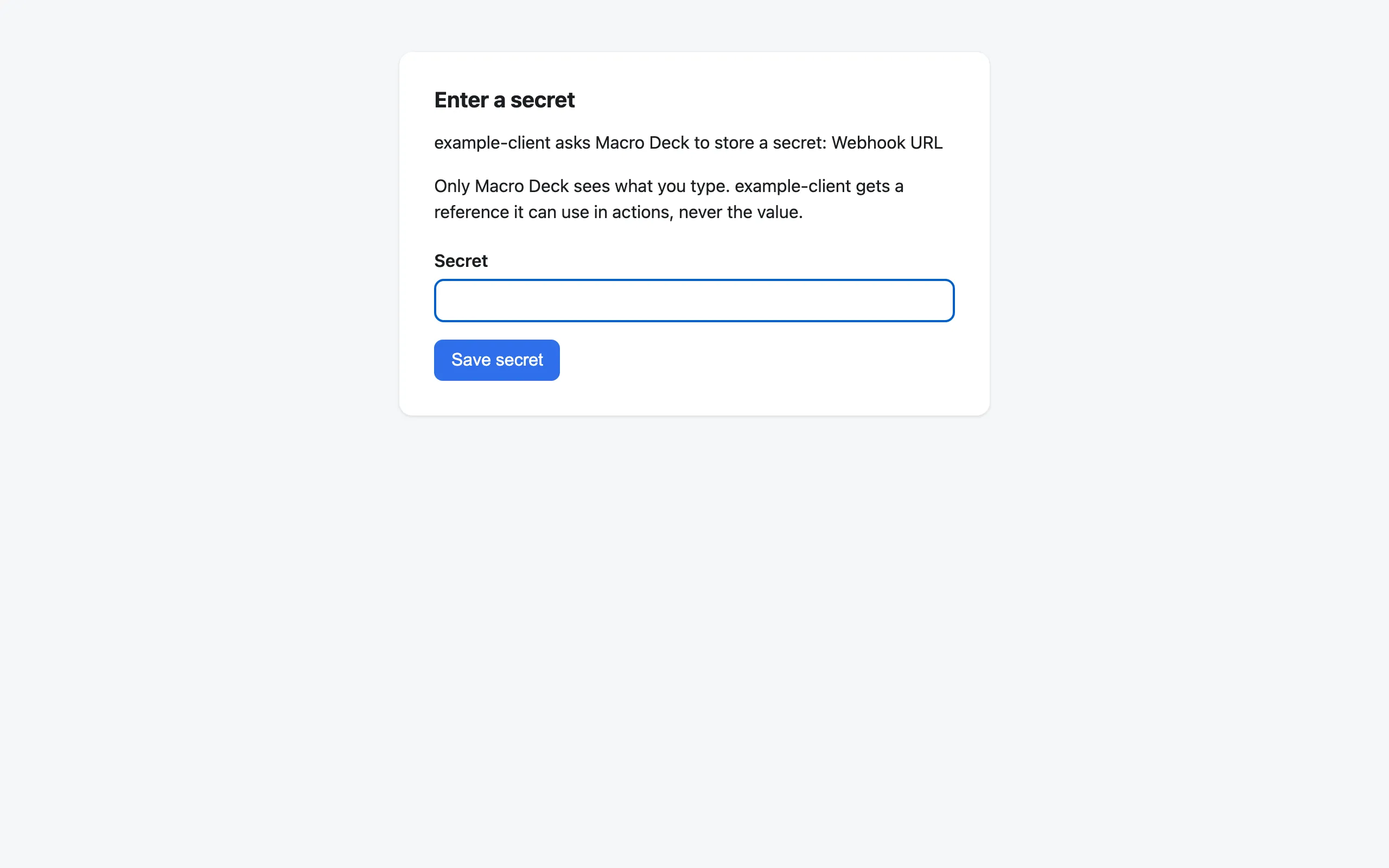
When the client needs a new secret, for example a webhook URL, Macro Deck opens a page in your browser and you type the value there. The client only gets a reference to the stored secret, never the value. The page works once and for 10 minutes. A step that uses a stored secret still needs your approval after an AI client changed it, like any other change.
Actions AI clients may run
Section titled “Actions AI clients may run”Under Actions AI clients may run you choose for each provider:
- Allow: AI clients run its actions directly.
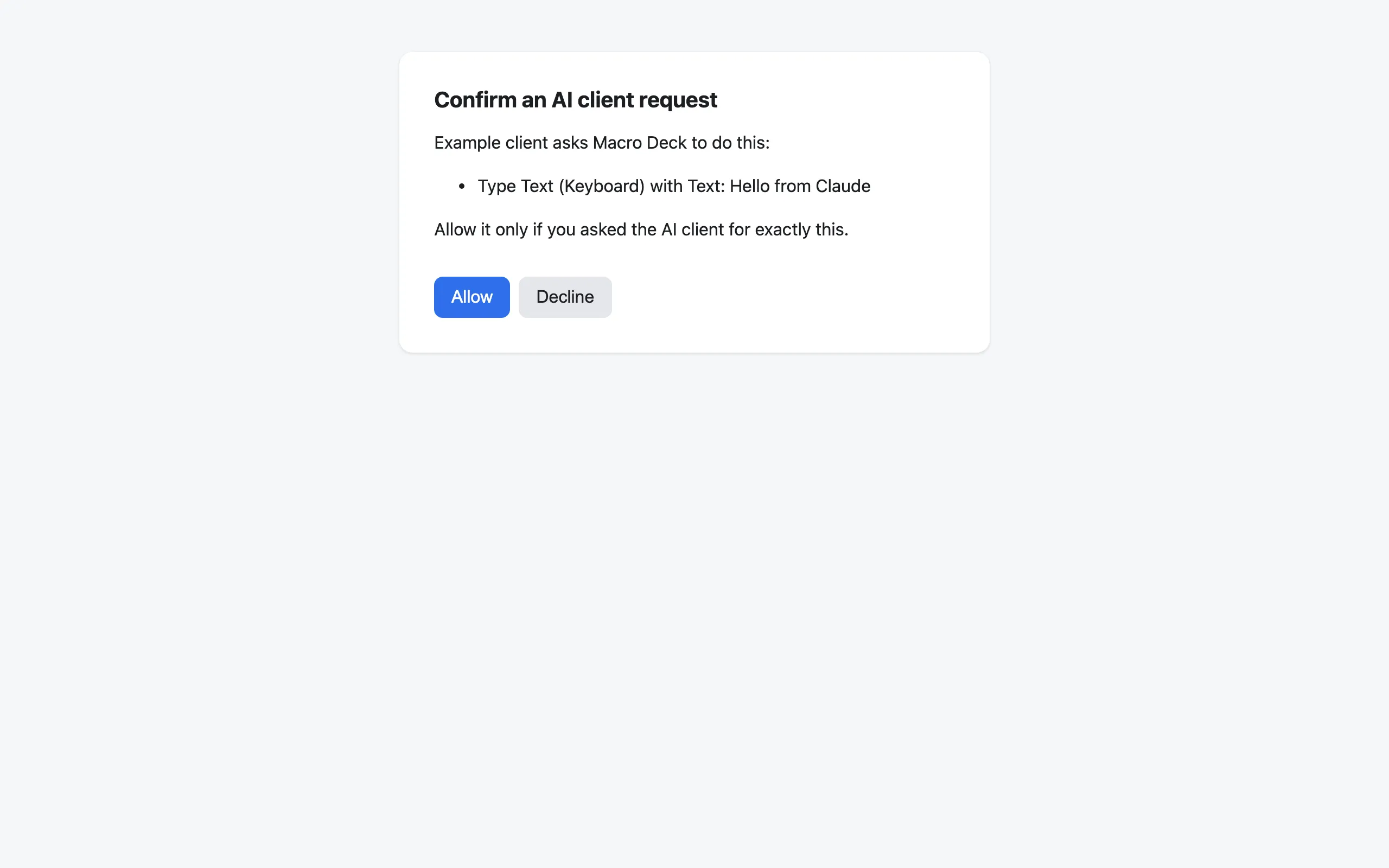
- Ask first: Macro Deck asks you before every one of its actions and runs it only if you agree. A client with its own confirmation dialog shows the question there. A client without one, such as Claude Desktop, opens a Macro Deck page in your browser instead, where you choose Allow or Decline. The page works once and for 5 minutes, and runs nothing until you answer.
- Off: AI clients cannot run its actions.
Default keeps Macro Deck’s choice, shown next to it. Built-in actions that run programs and scripts, press keys, use files or the network, or shut the computer down ask first by default, and so does every plugin action. The setting also covers actions that a script or automation runs when an AI client starts it.
Undo changes
Section titled “Undo changes”You can ask the AI client to undo its changes. Macro Deck keeps the last 20 changes of all AI clients together, and restoring a backup clears them. Anything you edited yourself since the change stays as it is. The details are in the developer reference.
Connected clients and revoking a token
Section titled “Connected clients and revoking a token”Connected clients lists the clients that are connected right now, with the token each one uses. Refresh updates the list.
Revoke next to a token disconnects every client using it immediately, and the token stops working for good. A revoked token can then be removed from the list.
Problems
Section titled “Problems”See Troubleshooting.