
iPhone and iPad
The app runs on iPhone and iPad with iOS or iPadOS 15 or later, in portrait and landscape. Shortcuts and Siri need iOS 16, the script widget and the host widget’s wake button need iOS 17, and the Control Center controls need iOS 18.
Shortcuts and Siri
Section titled “Shortcuts and Siri”The app adds four actions to the Shortcuts app. You can use them in your own shortcuts and automations, or ask Siri:
| Action | Does | Ask Siri |
|---|---|---|
| Open Macro Deck | Opens the app on the Connections screen or in the settings (Area). | “Open Macro Deck” |
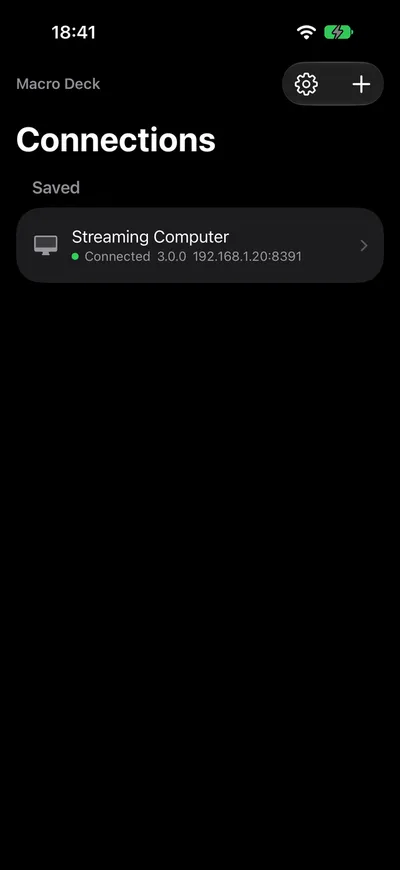
| Connect to Host | Opens the deck of one of your saved computers (Host). | “Connect to Streaming Computer in Macro Deck” |
| Wake Computer | Wakes one of your saved computers with Wake-on-LAN (Computer), without opening the app. See Wake the computer. | “Wake Streaming Computer with Macro Deck” |
| Run Script | Runs a Macro Deck script on its computer, without opening the app. Input Values takes the script’s inputs as a dictionary, or one name=value per line. |
“Run a script in Macro Deck” |
Run Script lists every script of your saved computers that does not run on a widget. It needs a license or a running trial, the device unlocked, and the computer reachable over the network: scripts cannot run over a USB cable from Shortcuts. If the computer is locked, the script does not run. When a script takes longer, Shortcuts says it started and is still running.
With the Shortcuts app’s own automations, a script can run when you arrive home, at a time of day, when a Focus turns on or when you tap an NFC tag, for example to start your stream setup on the computer.
Other apps can run a script with a macrodeck-companion://run-script link once you allow it in the settings under
Automation. See Run scripts from other apps.
Home Screen and Lock Screen
Section titled “Home Screen and Lock Screen”- Quick actions: touch and hold the app icon to open one of up to four saved computers directly.
- Macro Deck host widget: in small and medium size, it opens the deck of the computer you choose for it. Touch and hold the widget and choose Edit Widget to pick the computer. On iOS 17 and later, a computer that can be woken gets a power button on the widget, which wakes it without opening the app; see Wake the computer.
- Macro Deck scripts widget: runs scripts of one saved computer with a tap, without opening the app. It needs iOS 17.
- Macro Deck script control: runs one script from Control Center. It needs iOS 18; see Macro Deck script control.
- Wake computer control: wakes one computer from Control Center. It needs iOS 18; see Wake computer control.
Macro Deck scripts widget
Section titled “Macro Deck scripts widget”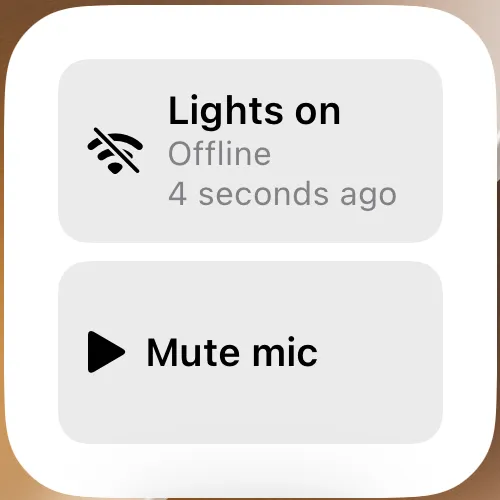
Add Macro Deck scripts to the Home Screen in small or medium size, or to the Lock Screen as a circular or rectangular widget, then touch and hold it and choose Edit Widget:
- Choose the Host. Only computers you saved are offered, and not those connected over USB.
- Choose Script 1 to Script 4. Each list holds the scripts of that computer.
- If a script takes inputs, write their values in Input Values beside it, one
name=valueper line. Leave it empty to use the script’s own defaults.
A small widget shows two scripts, a medium one four, a circular Lock Screen widget the first script and a rectangular one the first two. Scripts that do not fit are left out, and a small note counts them.
Tapping a script runs it through the Macro Deck app in the background, the same way the Run Script action of Shortcuts does. It needs a license or a running trial, and the computer reachable over the network. The script shows Running, then Done, or Started when the computer took it and it is still running.
If a script did not run, it says why: Offline, No answer, Computer locked, Sign in needed, License needed, Update host, Script missing or Check values, and how long ago that was. This is what the app found out the last time it contacted the computer, not a live check: the widget never contacts your computer itself. A computer that went offline while you never opened the app still looks fine until you tap a script. Tapping always tries again.
The widget offers the scripts the app last listed for each computer. The app refreshes them when you open it, at most once an hour for each computer. If a computer has never answered, the editor says open Macro Deck to load its scripts. Input values are saved in the widget’s settings on your phone and are not a place for secrets.
Control Center
Section titled “Control Center”Macro Deck script control
Section titled “Macro Deck script control”On iOS 18 and later, a control in Control Center runs one script of one saved computer, without opening the app. It uses the same route as the scripts widget and the Run Script action.
To add it, swipe down from the top right corner to open Control Center, tap the + button at the top left, choose Add a Control and pick Macro Deck script under Macro Deck. The app then asks you to set it up:
- Choose the Host. Only computers you saved are offered, and not those connected over USB.
- Choose the Script. The list holds the scripts of that computer.
- If the script takes inputs, write their values in Input Values, one
name=valueper line. Leave it empty to use the script’s own defaults.
Add the control once for every script you want to run.
Tapping the control runs the script through the Macro Deck app in the background, the same way the Run Script action of Shortcuts does, and the app does not come to the front. It needs a license or a running trial, and the computer reachable over the network. If a script did not run, the control changes its symbol, for example to a crossed-out Wi-Fi symbol when the computer was offline, and names the reason where it has room for text, in the words of the scripts widget: Offline, No answer, Computer locked, Sign in needed, License needed, Update host, Script missing or Check values. This is what the app found out the last time it contacted the computer, not a live check, and tapping always tries again.
A control that is not set up yet, or whose computer you removed, cannot be tapped and shows a gear symbol.
Some limits:
- The control does not show whether a script is on or off. Macro Deck cannot tell the app what a script switched, so a script that toggles something cannot be shown as a switch. The control only runs it.
- The control offers the scripts the app last listed. The app refreshes them when you open it, at most once an hour for each computer, so open Macro Deck once after you add a script on the computer.
- Input values are saved in the control’s settings on your phone and are not a place for secrets.
Wake computer control
Section titled “Wake computer control”On iOS 18 and later, the Wake computer control wakes one of your saved computers with Wake-on-LAN, without opening the app. Add it the same way as the script control, choose Wake computer under Macro Deck and choose the Computer. Only computers that can be woken are offered.
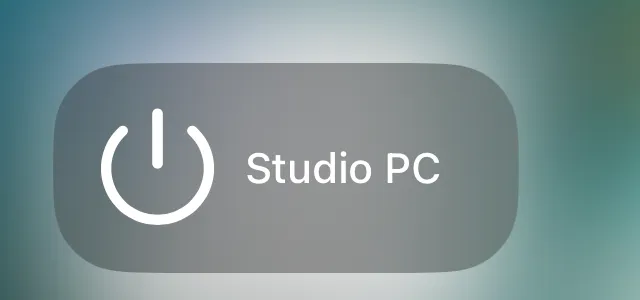
Tapping the control sends the wake signal through the Macro Deck app in the background, and the app does not come to the front. A host widget set to the same computer shows how it went. A control whose computer you removed, or that cannot be woken, cannot be tapped and shows a gear symbol. See Wake the computer.
Differences from Android
Section titled “Differences from Android”- Automation apps use a link. Android automation apps send an intent, and Android can put a script on the home screen. On iPhone and iPad, use the Run Script action in Shortcuts, or the run-script link; see Run scripts from other apps.
- The screen cannot be turned on or off by Macro Deck. iOS does not allow apps to do this, so the Turn screen on, Turn screen off and Bring to front actions do not work on iPhone and iPad. Full-screen screenshots are not possible either; Take screenshot captures the deck.
- The app connects only while it is open. When it goes to the background, iOS ends its connections, and the app reconnects when you return. The In focus variable tells Macro Deck whether the app is in front.
- Brightness: when Macro Deck sets the brightness, iOS changes the screen brightness while the deck is open, and the app restores your previous brightness when you leave the deck.
- USB: an iPhone or iPad connects over a cable without any setup on the phone, as long as the app is open and in front. See Connect over USB.
- Vibration: iPads have no vibration motor, so Vibrate and haptic feedback do nothing there.
- CPU usage: only the iOS app reports the device’s CPU usage as a variable.
- Low Power Mode slows down network activity, which can make a deck feel slow. The settings say when it is on.
Keep the screen on
Section titled “Keep the screen on”Keep screen on in the app settings stops iOS from locking the screen, while a deck is open or always. For a wall-mounted iPad, combine it with Guided Access (Settings > Accessibility > Guided Access) to keep the iPad in the app.
Macro Deck 2 app
Section titled “Macro Deck 2 app”The earlier Macro Deck 2 app for iPhone and iPad is a different app. If you bought it, see License and trial.