
Use the deck
A deck in the app has no buttons around it: you move around with gestures, and everything else is on the Connections screen.
Gestures
Section titled “Gestures”| Gesture | Does |
|---|---|
| One finger sideways | The folder next to this one, among the folders at the same level. |
| One finger up or down | Up to the parent folder, or back down into the folder you came from. |
| Two fingers sideways | The next profile, in the order your profile list had when the app connected. |
| Three fingers sideways | The next computer this device is connected to. |
| One finger from the edge of the screen | Back to the Connections screen. On Android, the system’s back gesture does this. |
A tap on a widget always counts as a press; a swipe only starts once your finger moves. If you would rather use folder buttons only, turn off Navigation gestures in the app settings.
Each press vibrates briefly, unless you turn off Haptic feedback. iPads have no vibration motor.
Several computers at once
Section titled “Several computers at once”Leaving a deck does not close its connection. Every computer you opened stays connected while the app runs, shows Connected in the list, and opens again instantly. Swipe sideways with three fingers to switch between them without going back to the list.
Connect on opening in the app settings chooses which computer opens by itself when you start the app: the first one in your list that answers. With only one saved computer, the app opens it.
Connection settings
Section titled “Connection settings”Each connection has its own settings. On Android, open the ⋮ menu of the connection and choose Settings; on iPhone and iPad, swipe the connection to the left. There you also find Remove, on Android Disconnect, and Wake for a computer that can be woken over the network. Removing a connection also deletes its saved sign-in from this device.
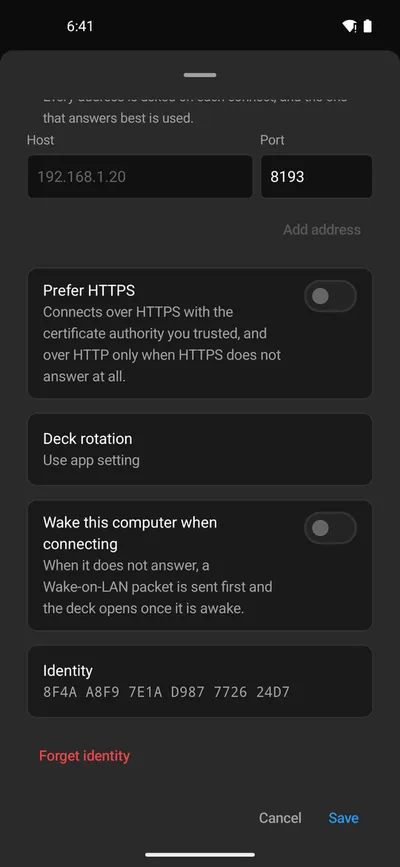
| Setting | Does |
|---|---|
| Name | The name in the list. |
| Addresses | Every address the computer can be reached at. The app tries all of them each time and uses the one that answers best, for example the LAN address at home and a VPN address elsewhere. Add address adds one. |
| Prefer HTTPS | Connects over HTTPS with the certificate authority you trusted, and over HTTP only when HTTPS does not answer at all. |
| Deck rotation | Portrait, landscape or automatic for this computer’s deck, or Use app setting. |
| Brightness | Appears once Macro Deck set this device’s brightness. Follow system gives the brightness back to the device. |
| Wake this computer when connecting | Sends a Wake-on-LAN packet first when the computer does not answer, and opens the deck once it is awake. The computer and its network card must support Wake-on-LAN. |
| Turn screen on when connected | Android only. Turns the screen on and opens this computer’s deck when the computer comes online. Needs Background connection and Display over other apps under Device control in the app settings. |
| Turn screen off when disconnected | Android only. Turns the screen off when the computer has been gone for 30 seconds. Needs Background connection and Turn screen off or, from Android 9, the Accessibility service under Device control in the app settings. |
| Identity | The computer’s identity, to compare with Identity in Macro Deck. Forget identity makes the app ask again next time. |
The screen follows the connection
Section titled “The screen follows the connection”The two screen settings are off by default, and each connection has its own. While what one needs is not turned on yet, it cannot be turned on and says what to turn on first under Device control in the app settings. A switch that is already on can always be turned off.
- A loss shorter than 30 seconds, such as a Wi-Fi roam or Macro Deck restarting, changes nothing: the screen is not turned off, and not turned on again when the computer is back.
- The first time the computer answers after the app started turns the screen on, and so does the computer coming back after it was gone for more than 30 seconds. That is how a tablet wakes when the computer starts. The screen is left alone while the app is in front.
- Signing out, being signed out from Macro Deck, or closing the connection in the app is not a loss, and the screen stays as it is.
- Scripts run from a shortcut, a tile or a widget do not count as an open connection, so they never turn the screen on or off.
- Turning the screen on does not unlock the device. With a screen lock, the deck asks you to unlock it first. After Turn screen off as device admin, Android can ask for the PIN instead of your fingerprint.
iPhone and iPad cannot turn the screen on or off, so these settings do not appear there.
Wake the computer
Section titled “Wake the computer”The app can wake a sleeping computer with Wake-on-LAN. This works once the computer told the app its network card, which Macro Deck does each time you connect to it over the network, and when the computer and its network card support Wake-on-LAN. A computer connected over USB cannot be woken.
In the app, choose Wake for the connection, or turn on Wake this computer when connecting in its settings. To wake it without opening the app:
| Where | How |
|---|---|
| Macro Deck host widget | Tap the power button on the widget. On iPhone and iPad this needs iOS 17. Tapping anywhere else still opens the deck. |
| Quick Settings (Android) | Add a wake tile: in the ⋮ menu of the connection choose Add wake tile, or add one under Wake tiles in the Automation settings. You can have up to three. In the list of available tiles it is called Wake computer with a number from 1 to 3. |
| Home screen (Android) | In the ⋮ menu of the connection choose Add wake shortcut to Home screen. This needs Android 8 or later. |
| Shortcuts and Siri (iPhone and iPad) | The Wake Computer action, or ask Siri “Wake Streaming Computer with Macro Deck”. This needs iOS 16. |
| Control Center (iPhone and iPad) | Add the Wake computer control and choose the computer. This needs iOS 18. |
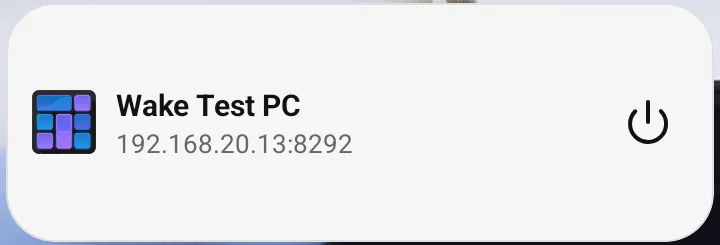
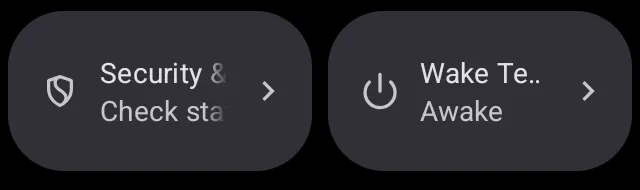
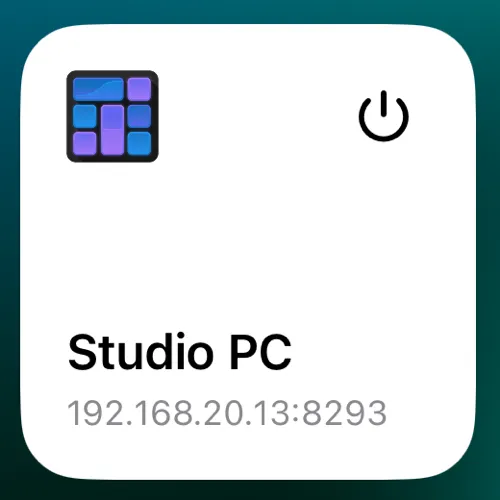
The app sends the wake signal for up to 25 seconds and waits for the computer to answer. It then says Awake, or No answer yet when the computer did not answer in that time. A computer that takes longer to start still wakes. Not woken means this device can only wake a computer that went to sleep recently: iPhone and iPad, and some Android devices, are not allowed to send the signal to the whole network. Not sent means this device was not on a network. The widget and the tile show the outcome for a few seconds, a home screen shortcut in a short message, and Shortcuts says it in a sentence. A home screen shortcut is called Wake and the computer’s name.
Waking works on a locked device, from a tile, the Lock Screen or Control Center, because it only sends the signal and does nothing else on the computer.
What the computer controls
Section titled “What the computer controls”Macro Deck decides a few things for each device, under Settings > Devices on the computer:
- Startup profile and Open profile on device: which profile the device shows.
- Screensaver: after the device sits idle for a while, it shows a clock or what is playing. The first touch brings the deck back. Start now shows it right away.
- Log out: signs the device out, and it shows Sign in again.
Automations and buttons can also act on the device itself: change its brightness, rotate it, vibrate it, take a screenshot and, on Android, turn the screen on and off. See Tips and automations.
Live video
Section titled “Live video”A widget that shows a live video, such as a camera or an OBS preview from a plugin, plays in the app as it does in Macro Deck, always without sound. The video pauses while you look at another folder or while the screensaver shows, and stops while the app is in the background; it starts again when you come back. Until the first picture arrives, the widget says it is connecting, or why the video is not available.
The phone loads the video through your computer, from Macro Deck, so the plugin’s video source does not need to be reachable from the phone, and a video works the same over the network and over USB.
When the computer is locked
Section titled “When the computer is locked”While the computer running Macro Deck is locked, the deck shows a lock screen and the connection reads Locked on the computer. The deck comes back by itself once you unlock the computer. To keep the deck visible instead, turn off Lock clients when this computer is locked in Settings > Security; Macro Deck still runs no actions from a device while the computer is locked. See Troubleshooting.
When the connection drops
Section titled “When the connection drops”If Macro Deck quits or the network goes away, the deck says it is reconnecting and keeps trying. It comes back on its own once the computer answers again. On Android, the Background connection keeps trying even while the app is in the background; see Android.