
Run scripts from other apps
The Companion app can run a Macro Deck script on one of your computers when another app asks for it: an automation app such as Tasker or MacroDroid on Android, or any app that can open a link on iPhone and iPad. On iPhone and iPad, the Run Script action in Shortcuts does the same without any setup; see Shortcuts and Siri.
A script runs the same way it does from Shortcuts: it needs a license or a running trial, the computer reachable over the network, and the computer unlocked. Scripts cannot run over a USB cable this way. Only scripts that do not run on a widget are offered.
Turn it on
Section titled “Turn it on”- Open the app settings and choose Automation.
- Turn on Allow external automation. The app creates an automation key.
- Open one of your computers to see its scripts, and tap a script to copy what an automation needs to run it.
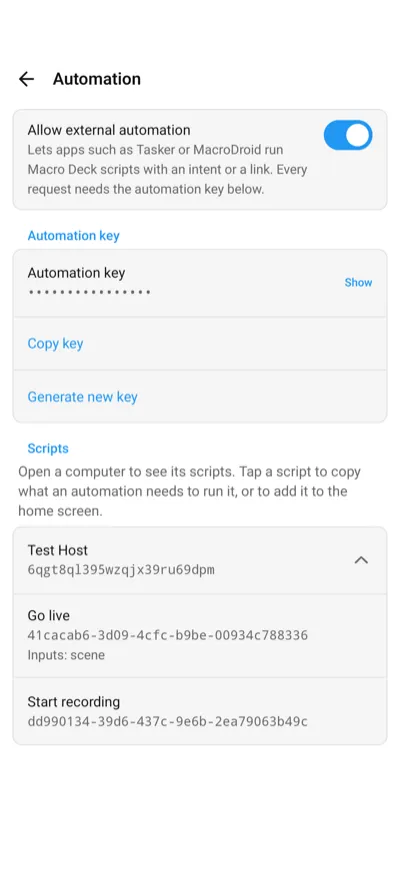
Every request from another app has to carry the automation key. An app that does not have it cannot run anything, and learns nothing about your computers or scripts. Keep the key private like a password:
- Generate new key replaces it and shows the new key, so you can copy it right away. Every automation that uses the old key stops working until you give it the new one. Do this if a key or a link with the key was ever shared.
- If the device would not keep the new key, the app says so instead of showing one. Until a key is stored, no request runs. Choose Generate new key again to retry.
- Turning Allow external automation off stops every request at once and keeps the key for later.
On Android, a run can start while the phone is locked, so an automation can run a script when you arrive home or at a set time.
Android: send an intent
Section titled “Android: send an intent”Send a broadcast intent to the app:
| Field | Value |
|---|---|
| Action | app.macrodeck.companion.action.RUN_SCRIPT |
| Package | app.macrodeck.companion |
| Target | Broadcast receiver |
Always set the package. Android only delivers the intent to the app when the package is set.
The intent takes these extras, all as text:
| Extra | Value |
|---|---|
host |
The computer’s ID, shown under its name in the Automation settings. |
hostName |
Instead of host: the computer’s name as the Connections screen shows it. Letter case does not matter. |
script |
The script’s ID, shown under its name in the Automation settings. |
scriptName |
Instead of script: the script’s name. Letter case does not matter. |
input.<name> |
The value of one input, such as input.scene = Live. Add one extra per input. |
inputs |
Instead of single inputs, or together with them: a JSON object such as {"scene":"Live"}, or one name=value per line. A single input.<name> wins over the same name here. |
key |
The automation key. |
An ID never changes. A name stops working when you rename the computer or the script, and when two computers or
two scripts have the same name the app does not guess and runs nothing. Input values are checked by Macro Deck:
a number input takes 3 or 2.5, a true or false input takes true or false.
Copy intent details in the Automation settings copies all of it for one script, with the key.
Tasker
Section titled “Tasker”- Add the action System > Send Intent.
- Set Action to
app.macrodeck.companion.action.RUN_SCRIPT, Package toapp.macrodeck.companionand Target to Broadcast Receiver. - Add the extras as
name:value, one per Extra field, such ashost:3f2a9c,script:go-liveandkey:<your key>. Useinput.scene:Livefor an input.
MacroDroid
Section titled “MacroDroid”- Add the action Connectivity > Send Intent.
- Choose Broadcast, set Action to
app.macrodeck.companion.action.RUN_SCRIPTand Package toapp.macrodeck.companion. - Add the extras
host,scriptandkey, and oneinput.<name>per input.
What happens
Section titled “What happens”- When the script ran, nothing is shown.
- When it did not run, for example because the computer was off, a notification says why. A request with a missing or wrong key, or while Allow external automation is off, shows nothing.
- An app that sends an ordered broadcast gets the result back:
RESULT_OKwhen the script ran, with the extrassuccess,finished,problemandmessage.finishedisfalsewhile the script is still running on the computer.problemis one ofoffline,host_locked,license_required,not_found,invalid_inputs,no_answer,no_result,sign_in_required,not_saved,unsupported,host_needs_update,failed,wrong_key,key_unavailable,disabled,missing_host,missing_script,ambiguous_hostorambiguous_script.
The app waits up to 25 seconds for the computer. A script that takes longer keeps running on the computer.
While the phone is idle, Android can hold back the network to save battery. A script then does not run, and the notification says the computer did not answer. If this happens, exclude Macro Deck from battery optimization, or run the automation while the screen is on.
Both platforms open this link:
macrodeck-companion://run-script?host=<computer ID>&script=<script ID>&key=<key>&input.scene=LiveIt takes the same fields as the Android intent, as query parameters. Encode spaces and special characters, for
example input.scene=Big%20Scene. Copy link in the Automation settings copies the link of a script with
the key.
The app shows whether the script ran. On Android, the link only works from apps that open it directly, such as
Tasker’s Browse URL or an NFC tag app, and not from a web page. Set the package app.macrodeck.companion when
an app lets you, so the link cannot reach another app. On iPhone and iPad, any app or web page can open the link,
so the key is what protects it. Another app could also claim the macrodeck-companion link for itself and receive
the key: generate a new key if you ever suspect that.
Android: shortcuts
Section titled “Android: shortcuts”Tap a script in the Automation settings and choose Create shortcut. The sheet asks for:
- Name: what the shortcut is called. It starts as the script’s name. Give two shortcuts of the same script different names when you run them with different values.
- The script’s inputs: one field for each, such as a scene name, a number or a switch. An input with a default
starts with it. An input the script requires needs a value. An input you leave empty uses the script’s own
default. A number takes
3,2.5or2,5.
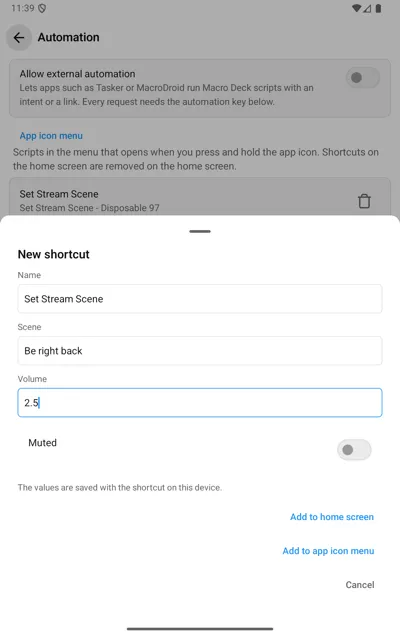
Then choose where it goes:
- Add to home screen: a shortcut icon on the home screen. This needs Android 8 or later and a launcher that supports pinned shortcuts.
- Add to app icon menu: a line in the menu that opens when you press and hold the Macro Deck icon, above your saved computers. This needs Android 7.1 or later. The menu holds at most half of the lines your launcher allows, often two, so your computers keep their place there. When it is full, remove a script under App icon menu in the Automation settings first.
Tapping a shortcut runs the script with the values you set, without opening Macro Deck, and a short message says whether it ran. If the computer is off, unreachable or locked, the message says so and the script does not run.
The values are saved with the shortcut on your device. Do not put a password or a token into an input. To change the values, remove the shortcut and create it again. Remove a home screen shortcut on the home screen, and a line of the app icon menu in the Automation settings. A home screen copy that was dragged out of the app icon menu stops running when you remove the line.
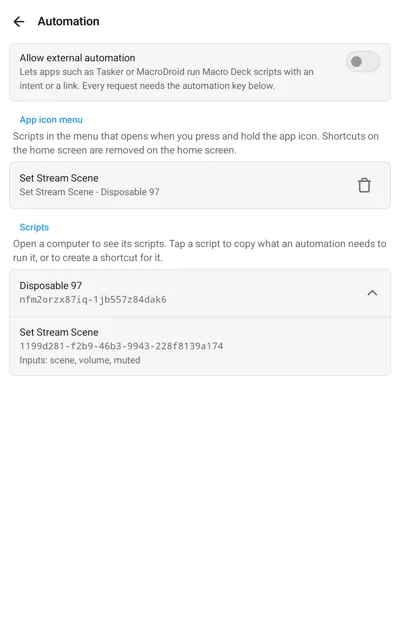
A shortcut is yours, so it works without the key and with Allow external automation turned off. If you remove the computer from the app, its shortcuts say so and stop running.
Android: Quick Settings tiles
Section titled “Android: Quick Settings tiles”A Quick Settings tile runs a script from the panel you pull down from the top of the screen, without opening the app. This needs Android 7 or later. You can have up to five tiles.
- Open the app settings and choose Automation.
- Open one of your computers, tap a script and choose Add to Quick Settings.
- Give the tile a name, fill in the script’s input values if it has any, and tap Add to Quick Settings.
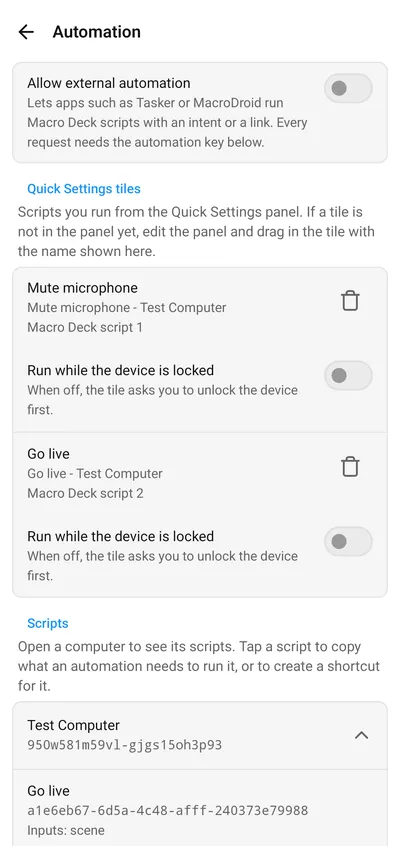
On Android 13 and later, Android then asks whether to add the tile to the panel. On older versions, or if you declined, edit the Quick Settings panel and drag the tile in yourself. In the list of available tiles it is called Macro Deck script with a number from 1 to 5; the Automation settings show that name under each of your tiles. Some devices, such as Fire tablets, do not let you add tiles to the panel.
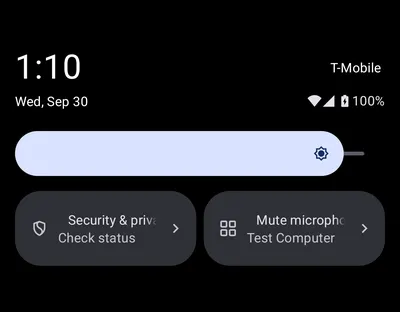
Tap the tile to run the script. The tile shows Running until the computer answers, and then Done, or why the script did not run, such as Offline or Computer locked. When you open the panel, a tile whose computer does not answer already says Offline under its name. You can still tap it. On Android 7 to 9 a tile has no second line, so it says how a run went in place of its name until you close the panel, and shows nothing before you tap.
A tile is yours, so it works without the key and with Allow external automation turned off. Because the panel can be opened on the lock screen, a tile asks you to unlock the device first. To let a tile run while the device is locked, turn on Run while the device is locked for that tile, when you add it or later under Quick Settings tiles in the Automation settings.
To remove a tile, tap the bin next to it under Quick Settings tiles. It leaves the panel, and its input values are deleted. If you remove the computer from the app, its tiles are removed as well.
Android: scripts widget
Section titled “Android: scripts widget”The Macro Deck scripts widget puts several scripts on the home screen, each one a button that runs it. A widget holds up to eight scripts of one computer, and you can place as many widgets as you like.
- Touch and hold an empty spot on the home screen, choose Widgets and add Macro Deck scripts.
- Choose the computer. The app then lists its scripts.
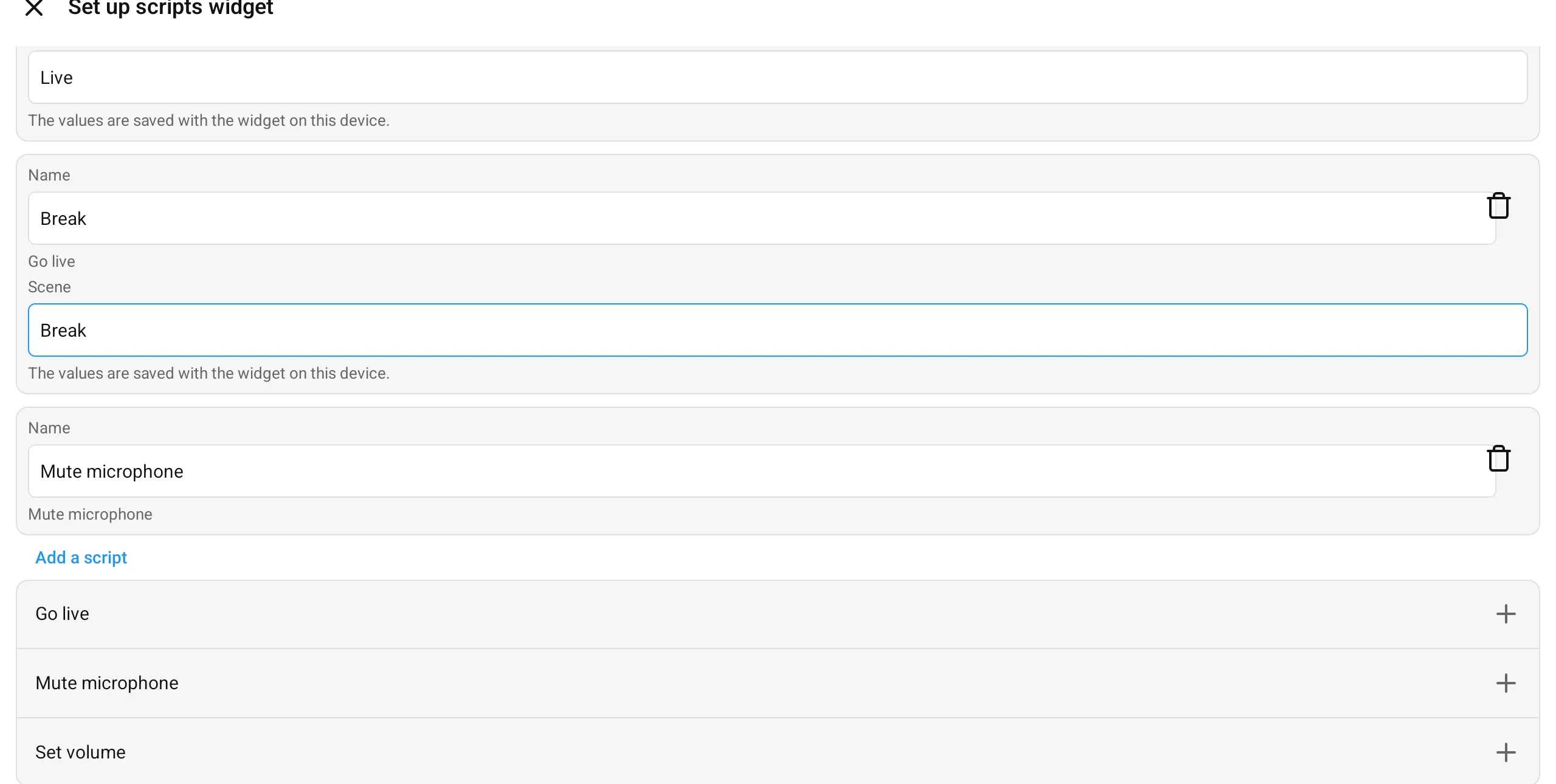
- Tap a script to add it. Change its name if you like, and fill in its input values if it has any. You can add the same script again with different values, such as one button per scene.
- Tap Save.
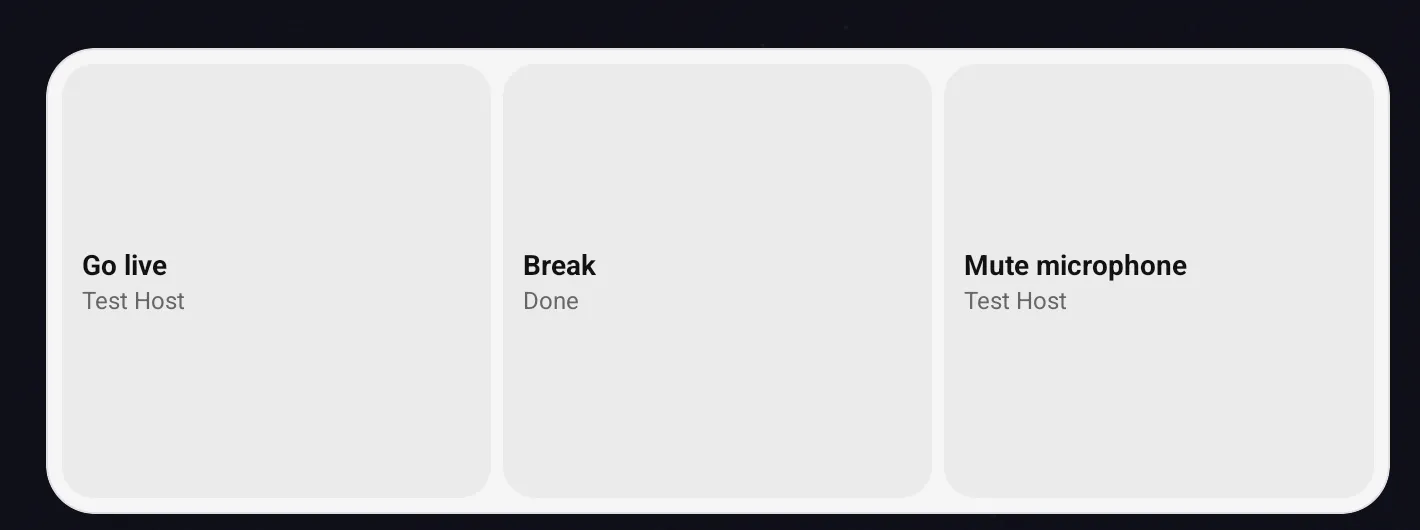
Tap a button to run its script. The button shows Running until the computer answers, and then Done or why the script did not run, such as Offline, Computer locked or Connect first, and a few seconds later it shows the computer’s name again. You can tap it again at any time.
The widget follows its size: the wider it is, the more columns it has, and the taller it is, the more rows. When the widget is too small for all its scripts, the last button says how many more there are, such as +3 more. Make the widget larger to see them.
The computer’s name under a button is replaced by Offline or Computer locked when the computer does not answer. That is only a hint, taken when you place the widget, when the phone starts and about every 30 minutes, so the app contacts the computer now and then in the background even while it is closed. After the computer is back, the hint can stay for up to 30 minutes. You can still tap the button, which always tries to run the script, and a script that ran clears the hint at once.
To change a widget’s scripts, touch and hold it and choose the settings on Android 12 or later. On older versions remove the widget and place it again. If you remove the computer from the app, its widgets say so, and tapping one lets you choose another computer.
A widget is yours, so it works without the key and with Allow external automation turned off. The input values are saved with the widget on this device. The widget shows only whether a script ran: a script that switches something on or off does not make the button show that state.