
AutoHotkey
The AutoHotkey integration runs AutoHotkey v2 scripts from your buttons: sending keys to a window in the background, arranging windows, app-specific hotkeys and anything else AutoHotkey can do. You keep your scripts in Macro Deck, edit and test them there, start and stop them from a button, and see whether they are running. Scripts can read and set Macro Deck variables and show notifications through a small helper Macro Deck adds to them.
It is available on Windows only, because AutoHotkey runs only there, and it is off until you turn it on. Only AutoHotkey v2 is supported. Scripts written for AutoHotkey v1 do not run.
In Macro Deck, Scripts on their own are the visual action flows you build in the app. The scripts this page is about are always called AutoHotkey scripts.
Set up AutoHotkey
Section titled “Set up AutoHotkey”- Install AutoHotkey v2 from the official download page. Macro Deck does not include AutoHotkey.
- In Macro Deck, open Integrations, choose AutoHotkey and turn it on.
Macro Deck looks for AutoHotkey v2 by itself, in this order:
- Where the AutoHotkey installer recorded it in the registry, for all users or just for you.
C:\Program Files\AutoHotkey, the default for an installation for all users.%LocalAppData%\Programs\AutoHotkey, the default for an installation just for you.
In the installation it uses v2\AutoHotkey64.exe, or v2\AutoHotkey32.exe on 32-bit Windows. The AutoHotkey
version it found appears in the AutoHotkey settings and in the autohotkey_version variable.
A portable AutoHotkey
Section titled “A portable AutoHotkey”If you use AutoHotkey without installing it, or keep it somewhere else, open the integration’s
AutoHotkey settings with Set up in the Configuration section of its Overview. Set
AutoHotkey executable to Choose the executable and pick AutoHotkey64.exe or AutoHotkey32.exe as
Executable. Macro Deck checks that the file exists, is AutoHotkey v2 and starts. AutoHotkey in use
shows the executable Macro Deck runs and its version.
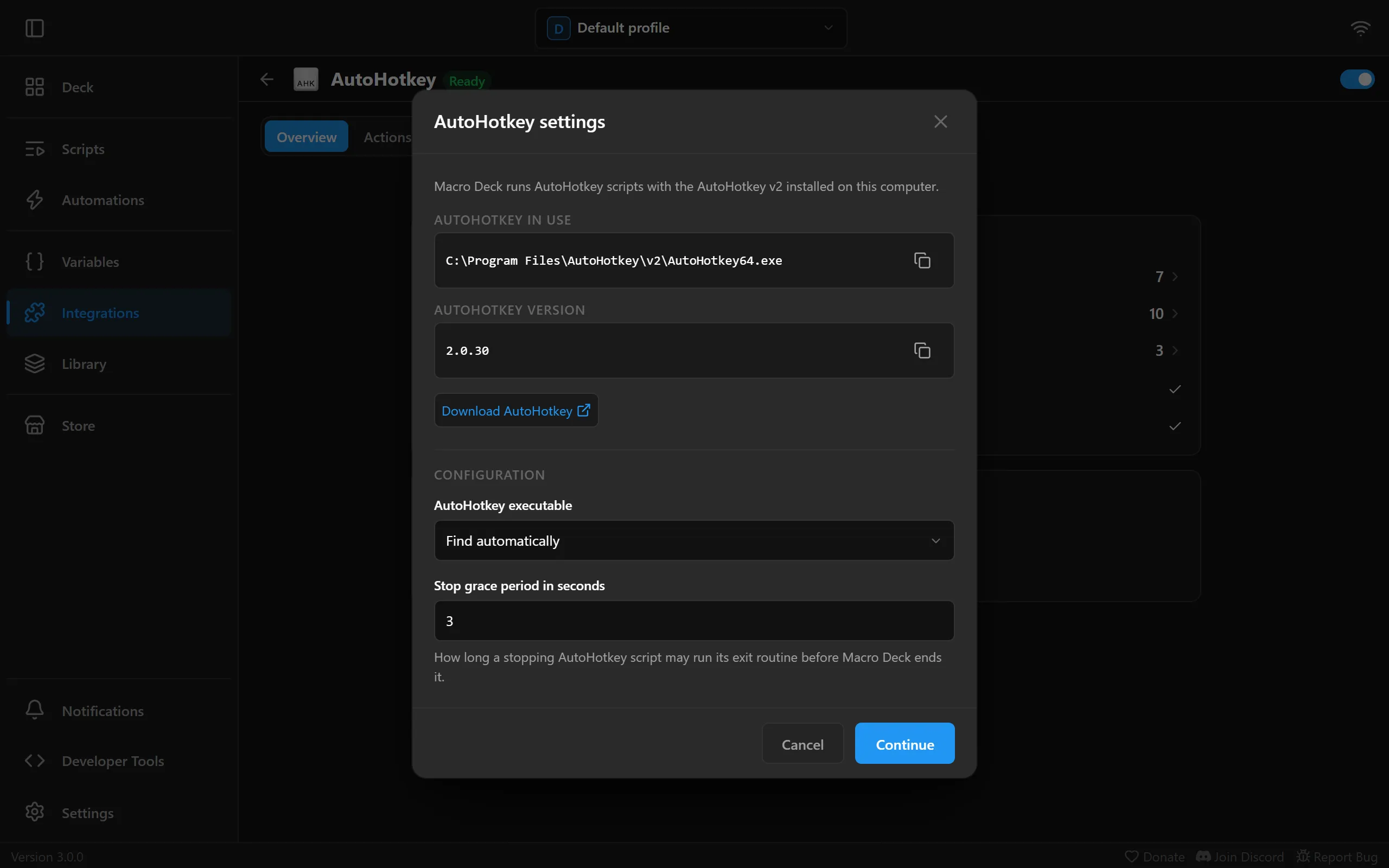
The same settings have the Stop grace period in seconds: how long a script that is asked to stop may run its exit routine before Macro Deck ends it. It is 3 seconds unless you change it, and can be 0.5 to 5 seconds.
The integration has to be turned on to change its settings. Saving them takes effect at once and keeps running AutoHotkey scripts running.
When AutoHotkey is not found
Section titled “When AutoHotkey is not found”Until Macro Deck finds a working AutoHotkey v2, the integration shows the issue AutoHotkey not found, AutoHotkey v2 required (for AutoHotkey v1) or AutoHotkey does not start. Learn more on the issue opens the AutoHotkey download page. After installing, choose Check again.
You can still write and edit scripts in the meantime. Actions that run a script fail with “AutoHotkey v2 is not available”, and scripts set to start with Macro Deck do not start.
The Scripts tab
Section titled “The Scripts tab”The AutoHotkey integration’s page has a Scripts tab beside its other tabs. It is your library of AutoHotkey scripts. Buttons refer to a script there by an id that never changes, so renaming a script keeps every button working. The library is part of your backups.
The tab is laid out like Macro Deck’s own Scripts page: your AutoHotkey scripts are listed on the left, and the one you choose opens on the right.
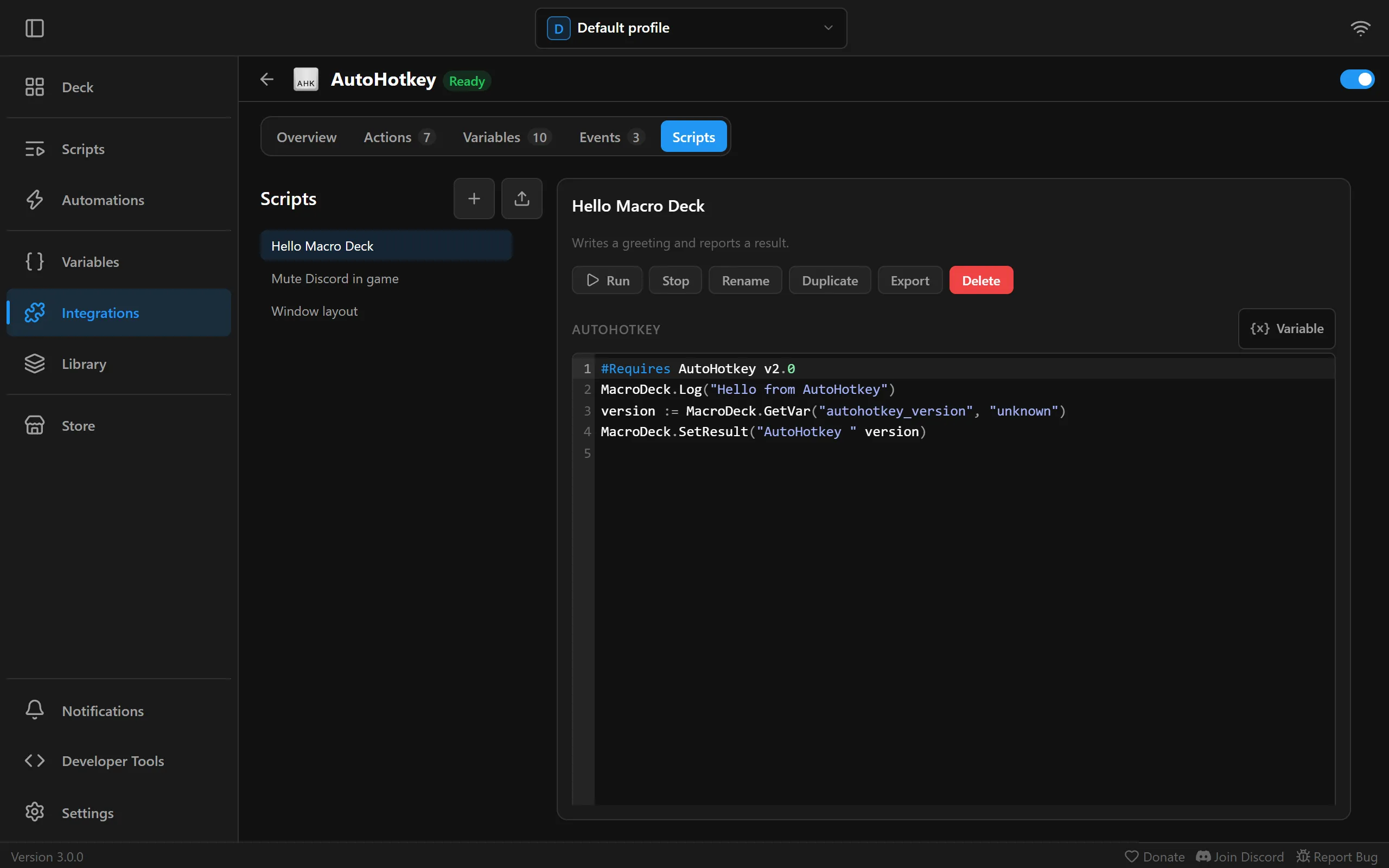
- + next to the list title creates a new script from a name and an optional description.
- The upload button next to it opens Import an .ahk file. It adds an
.ahkfile as a new script named after the file. The file must be UTF-8 text, with or without a byte order mark, and at most 1 MiB. Imported scripts run with your permissions, so only import scripts you trust. - The list shows Running next to a script while it runs. Choose a script to open it.
With a script open, its description shows under its name, followed by these buttons:
- Run runs the text in the editor, saved or not. When the script is already running, it restarts it. Stop stops it.
- Rename changes the name and description. Duplicate makes a copy. Export saves the script as
<name>.ahkin a folder you choose and asks before replacing a file that is already there. Delete removes it; buttons that run a deleted script fail until you choose another one.
Below them:
- Write the script in the editor, which highlights AutoHotkey v2 and has line numbers, search and undo.
Variable puts
MacroDeck.GetVar("name")for the variable you pick at the cursor. - Check syntax asks AutoHotkey whether the script loads, without running it, and shows the line of the first error under the editor. A script with errors can still be saved.
- Save stores the script, Discard changes goes back to the saved version. Unsaved changes shows next to the script’s name until you save.
Under Settings each script has:
| Setting | What it does |
|---|---|
| Start when Macro Deck starts | Starts the script whenever Macro Deck starts, see Scripts that keep running |
| Include Macro Deck helper | Lets the script use MacroDeck.SetVar, GetVar, Notify, SetResult and Log. On by default |
| Working directory | The folder the script starts in, A_WorkingDir. Empty uses the temporary folder of each run |
Last run shows how the latest run went: its Status (for example Exited with code 0, Failed to start or Timed out), its Duration, the Result the script reported, an error with its line, and what the script wrote to its output. The output keeps the newest 16 KiB.
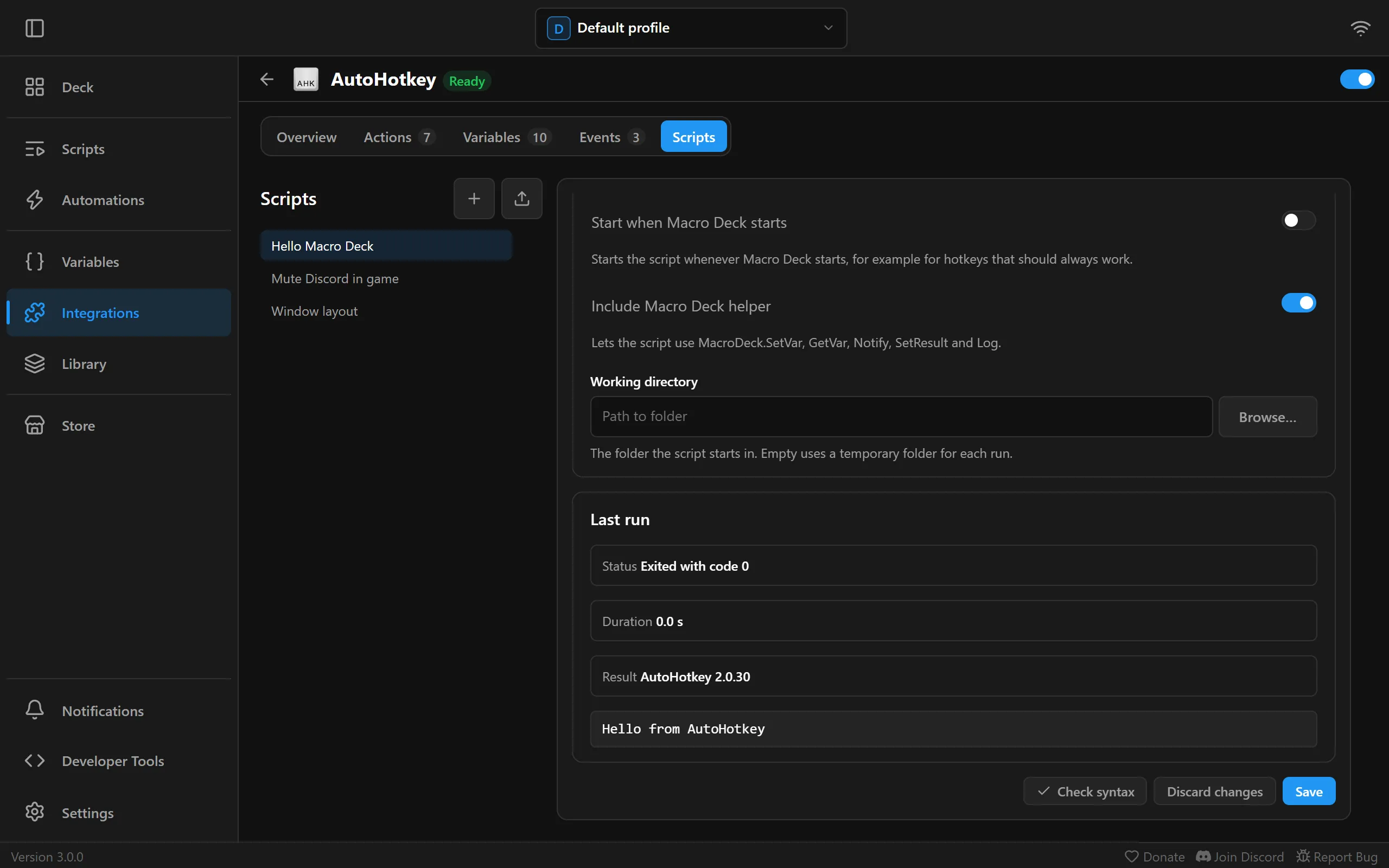
AutoHotkey never shows its error dialogs for scripts Macro Deck runs. Load errors and runtime errors appear under Last run instead.
Actions
Section titled “Actions”| Action | What it does |
|---|---|
| Run AutoHotkey script | Runs a script from the Scripts tab |
| Run AutoHotkey file | Runs an .ahk file where it is stored on your computer |
| Run inline AutoHotkey code | Runs AutoHotkey v2 code written in the action itself |
| Stop AutoHotkey script | Stops a script or file Macro Deck started |
| Restart AutoHotkey script | Stops a script or file and starts it again with new parameters. Starts it when it is not running |
| Toggle AutoHotkey script | Starts a script or file when Macro Deck does not run it, and stops it when it does |
| Open Window Spy | Opens AutoHotkey’s Window Spy to look up window titles, classes and controls |
The three run actions share these settings:
| Setting | What it does |
|---|---|
| Parameters | Names and values the script reads as MacroDeck.Params["name"], see Parameters |
| When already running | What happens when Macro Deck already runs this script: Do nothing (the default), Start another instance, Restart it or Fail the action |
| Wait until it finishes | The action finishes when the script ends, and fails when it exits with an error code or reports an error. Off by default: the action finishes once the script has started and loaded, so errors in the script still make it fail |
| Timeout | Only while waiting. Macro Deck stops the script when it runs longer, at most 9 minutes. 60 seconds unless you change it |
| Output variable | Only while waiting. Receives the text the script sets with MacroDeck.SetResult, or else its output |
On top of that:
- Run AutoHotkey script has AutoHotkey script, the script to run.
- Run AutoHotkey file has AutoHotkey file; Arguments, a list the script receives in
A_Args, where each argument can use variables such as{{ vars.volume }}; Working directory, which defaults to the folder of the file; and Include Macro Deck helper, which is off for files. - Run inline AutoHotkey code has AutoHotkey code, edited in the same editor as the Scripts tab, with Insert variable. It always includes the Macro Deck helper.
- Stop, Restart and Toggle AutoHotkey script have Target, either AutoHotkey script from the library with AutoHotkey script, or AutoHotkey file with AutoHotkey file. Restart and Toggle also have Parameters. Stop has Stop all instances, on by default; when off, only the most recently started instance stops.
Stopping asks the script to close first, so its OnExit routine runs, and ends it after the
Stop grace period in seconds when it does not. A script that is not running counts as stopped. Stop and Toggle only
ever touch scripts Macro Deck started: an AutoHotkey script you started yourself keeps running.
A Toggle AutoHotkey script button shows Running or Not running, so you can give each state its own look.
Open Window Spy uses the Window Spy of the AutoHotkey installation Macro Deck found.
Parameters
Section titled “Parameters”Macro Deck never puts values into the text of a script, so a value cannot break or change your code. Pass
them as Parameters instead. Each parameter has a name and a value, and the value can use variables, for
example {{ vars.volume }}:
SoundSetVolume MacroDeck.Params["volume"]MsgBox "Hello " MacroDeck.Params["name"]- Names use letters, digits and underscores, and do not start with a digit, like
volumeorwindow_title. - Values always arrive as text, exactly as entered, quotes, backticks, line breaks and
%included. Convert them yourself when you need a number, for example withInteger(MacroDeck.Params["volume"]). MacroDeck.Paramsis there even when the helper is off. UseMacroDeck.Params.Has("name")to check whether a parameter was passed.
Run AutoHotkey file also has Arguments, which arrive in A_Args unchanged, spaces and quotes
included.
The Macro Deck helper
Section titled “The Macro Deck helper”With Include Macro Deck helper on, a script can talk to Macro Deck through the MacroDeck class:
| Call | What it does |
|---|---|
MacroDeck.Params["name"] |
The value of a parameter, see above |
MacroDeck.IsAvailable |
true when the helper is included. Without it, MacroDeck only has Params |
MacroDeck.GetVar(name) |
The current value of a Macro Deck variable, as text. Throws an error when the variable does not exist or cannot be read |
MacroDeck.GetVar(name, default) |
The same, but returns default instead of throwing |
MacroDeck.SetVar(name, value) |
Sets a Macro Deck variable. When no variable has that name, Macro Deck creates a text variable |
MacroDeck.Notify(title, message, severity) |
Shows a notification in Macro Deck. severity is "info" (the default), "warning" or "error" |
MacroDeck.SetResult(text) |
Reports the script’s result: shown under Last run, in autohotkey_last_result and in the action’s Output variable |
MacroDeck.Log(text) |
Adds a line to the script’s output under Last run |
count := Integer(MacroDeck.GetVar("presses", "0")) + 1MacroDeck.SetVar("presses", count)if count >= 100 MacroDeck.Notify("Milestone", "You pressed it " count " times", "info")MacroDeck.SetResult(count)GetVar reads a variable the way the action that started the script sees it: a variable local to the
widget, script or automation the action runs in comes before a global one of the same name. It waits for
Macro Deck’s answer, which normally takes a moment. SetVar sets variables the same way.
Some limits keep a runaway script from flooding Macro Deck:
- A script can show up to 5 notifications every 10 seconds; more are dropped.
- Macro Deck handles up to 200 helper calls per second from one script. A message longer than 16 KiB is
dropped. A
GetVarover either limit fails instead of waiting.
Errors
Section titled “Errors”When a script fails at run time, the helper reports the error and its line to Macro Deck instead of showing
AutoHotkey’s error dialog. It appears under Last run, in autohotkey_last_error, in the
AutoHotkey script failed event, and makes a waiting action fail.
If your script handles errors itself with OnError, register your handler in front of the helper’s, or it
is never called:
OnError(MyHandler, -1)Scripts that keep running
Section titled “Scripts that keep running”Scripts with hotkeys, timers or Persistent keep running until they are stopped. For those:
- Turn on Start when Macro Deck starts in the script’s Settings to have it running whenever Macro Deck is.
- Put a Toggle AutoHotkey script action on a button to start and stop it, and give the Running and Not running states their own look.
- Each script in the library has a variable that says whether it runs,
autohotkey_script_<name>_running, for exampleautohotkey_script_mute_discord_running. The name is made from the script’s name when you create it and stays the same when you rename the script, so buttons and conditions that use it keep working.
When Macro Deck exits, or you turn the integration off, Macro Deck stops all the AutoHotkey scripts it started. They do not survive Macro Deck closing or crashing.
Variables
Section titled “Variables”| Variable | Shows |
|---|---|
autohotkey_installed |
Whether Macro Deck found a working AutoHotkey v2 |
autohotkey_version |
The AutoHotkey version it uses |
autohotkey_running_scripts |
How many AutoHotkey scripts Macro Deck runs right now |
autohotkey_last_script |
The script that ended or failed last |
autohotkey_last_exit_code |
Its exit code |
autohotkey_last_result |
What it reported with MacroDeck.SetResult |
autohotkey_last_error |
Why it failed, when it did |
autohotkey_script_<name>_running |
Whether that script from the library runs, one for each script |
Events
Section titled “Events”These events start automations. The actions they run can use the event’s values, such as
{{ event.exitCode }}:
| Event | When it happens | Values |
|---|---|---|
| AutoHotkey script started | A script Macro Deck started has loaded and runs | script |
| AutoHotkey script exited | Such a script has ended | script, exitCode, durationMs (how long it ran, in milliseconds) |
| AutoHotkey script failed | A script could not be started or loaded, reported an error, or did not finish in time | script, reason |
reason is one of start_failed, load_error, runtime_error or timeout.
Good to know
Section titled “Good to know”- Where a script runs. Scripts from the Scripts tab and inline code are written to a temporary folder for
each run, under
%TEMP%\MacroDeck\autohotkey, which Macro Deck deletes when the run ends.A_ScriptDiris that folder, so do not keep files next to the script there; set a Working directory or use full paths. Run AutoHotkey file runs the file where it is, soA_ScriptDiris its folder. Reloadand running as administrator. A script that reloads itself, or restarts itself elevated with*RunAs, starts a new AutoHotkey process. Macro Deck sees the script as ended; the new process is no longer under its control, so Stop and Toggle cannot stop it and it keeps running after Macro Deck exits. Use Restart AutoHotkey script instead ofReload.- Apps a script starts keep running. When Macro Deck stops a script, or exits, it ends only the AutoHotkey
process. A program the script opened with
Runstays open. Window Spy also stays open. - Windows of programs running as administrator. Macro Deck runs scripts without administrator rights, and Windows does not let them send keys or clicks to a window of a program that runs as administrator.
#SingleInstance. AutoHotkey applies it on top of When already running. For Run AutoHotkey file it compares the file, so#SingleInstance Forcecloses a copy of the same file you started yourself.- Output with other characters. Macro Deck reads a script’s output as UTF-8. Text written with
FileAppendto*without an encoding can show up garbled when it has characters outside plain English. UseFileAppend(text "n”, “*”, “UTF-8-RAW”)orMacroDeck.Log(text)`. - Long lines. A single helper message over 16 KiB is dropped, see the limits above.
Coming from Macro Deck 2
Section titled “Coming from Macro Deck 2”When you migrate from Macro Deck 2, buttons that used the AutoHotkey plugin by jbcarreon123 move over:
- Run AHKv2 Script becomes Run AutoHotkey file with the same file, set to Start another instance as the old plugin did.
- Write and Run AHKv2 Script becomes Run inline AutoHotkey code with the same code, also set to
Start another instance. Macro Deck 2 filled in
{{ }}variable placeholders inside the code; Macro Deck 3 never changes your code, so the migration warns about code that contains{{. Pass the values as Parameters and read them withMacroDeck.Params, or read variables withMacroDeck.GetVar. - Window Spy becomes Open Window Spy.
The AutoHotkey v1 actions are not migrated, because Macro Deck 3 supports AutoHotkey v2 only. Turn on the AutoHotkey integration and install AutoHotkey v2 after the migration; until then, the migrated buttons fail.
Troubleshooting
Section titled “Troubleshooting”- AutoHotkey not found although it is installed: Macro Deck needs AutoHotkey v2 with
v2\AutoHotkey64.exein the installation folder. Reinstall AutoHotkey v2, or choose the executable in the AutoHotkey settings. - A button does nothing: with When already running on Do nothing, pressing it while the script still runs does nothing. Look at the script’s state on the Scripts tab, or stop it first.
- “could not be loaded because of an error on line…”: run Check syntax on the Scripts tab. Code written for AutoHotkey v1 does not load in v2.
- A script that sends keys does nothing in a game or tool: the window may belong to a program running as administrator, see Good to know.
MacroDeck.GetVarthrows “was not found”: check the variable’s name, or pass a default:MacroDeck.GetVar("name", "").- “Macro Deck rejected this request”: the script sent too many helper calls or one longer than 16 KiB.
- “Too many AutoHotkey scripts are running”: Macro Deck runs at most 32 AutoHotkey scripts at once. Stop some first.