
Tips and automations
Every phone or tablet running the Companion app appears in Macro Deck as a device of the Macro Deck Companion integration. Automations and buttons can then act on it, and its state is available as variables.
What Macro Deck can do with a device
Section titled “What Macro Deck can do with a device”| Action | Android | iPhone, iPad |
|---|---|---|
| Set screen brightness | ✅ | ✅ |
| Set orientation: automatic, portrait or landscape | ✅ | ✅ |
| Vibrate | ✅ | iPhone only |
| Take screenshot of the deck, into a Folder on the computer | ✅ | ✅ |
| Take screenshot of the full screen | ✅ | ➖ |
| Turn screen on and show this Macro Deck | ✅ | ➖ |
| Turn screen off | ✅ | ➖ |
| Bring to front: show this Macro Deck’s deck | ✅ | ➖ |
On Android, turning the screen on and off and bringing the deck to the front need the permissions under Device control in the app settings; see Android. Each action asks for the device first: choose it from the list, where it appears once it connected.
The device’s variables are Battery level, Charging, Orientation, Screen brightness, Model, Platform, App version, In focus, Network type, Metered network, Internet access, Network name (Android, needs the Wi-Fi name permission), CPU usage (iOS) and Memory usage. Use them in labels, conditions and automations like any other variable.
Turn the screen off when Macro Deck quits
Section titled “Turn the screen off when Macro Deck quits”A tablet that only serves as a deck does not need its screen on while Macro Deck is not running. On Android:
- In the app, turn on Turn screen off (or the Accessibility service) under Device control.
- In Macro Deck, create an automation with the event Macro Deck > Server Stopped.
- Add the action Macro Deck Companion > Turn screen off and choose the tablet.
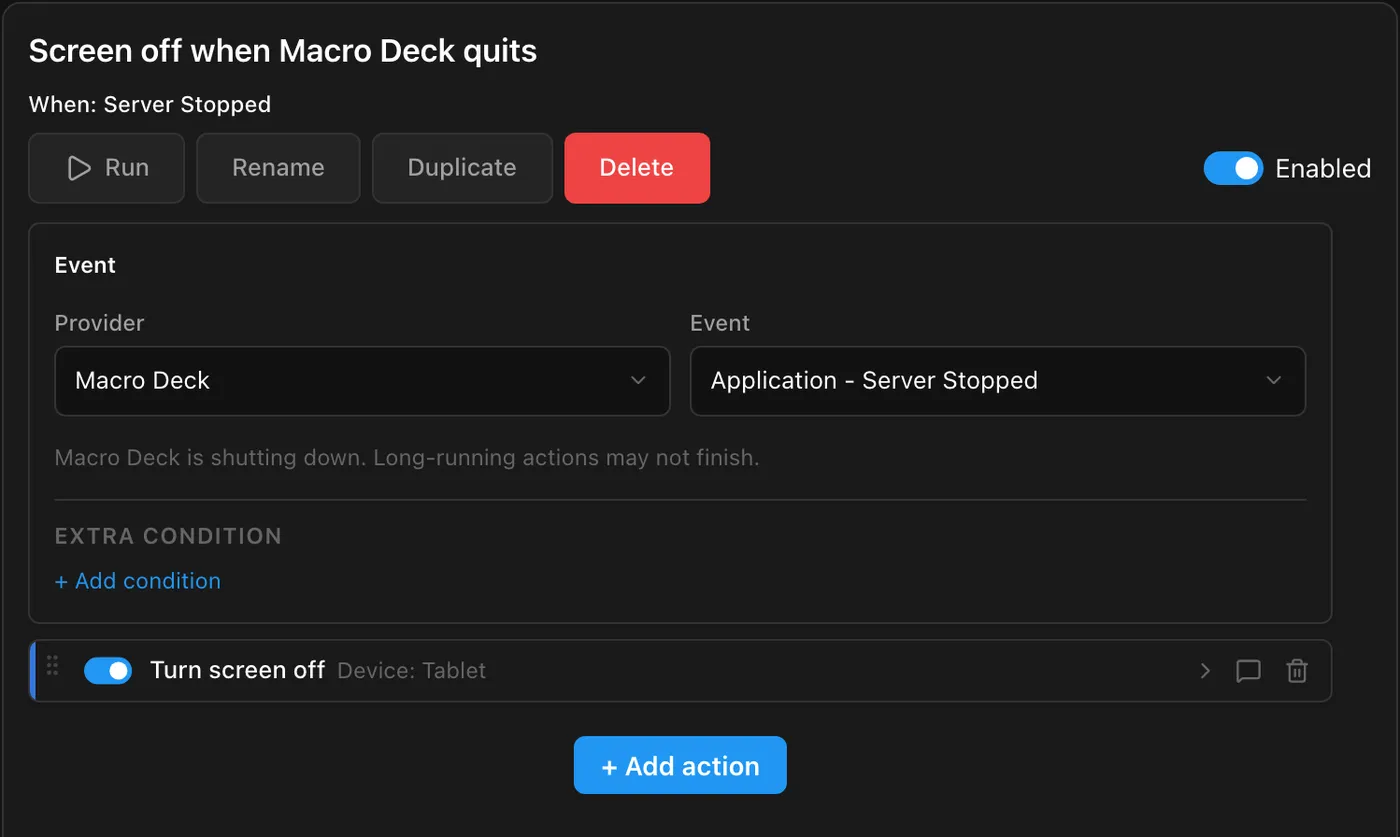
Macro Deck waits about two seconds for these actions before it closes its connections, which is enough for a device that is connected at that moment. It works when Macro Deck quits normally, for example with Quit in the tray menu, but not when Macro Deck is killed or crashes.
Turn the screen off while the computer is locked
Section titled “Turn the screen off while the computer is locked”The System integration’s Locked variable (system_locked) is true while the computer is locked. Two
automations turn the tablet off when you lock the computer and on again when you unlock it:
| Automation | Event | Only run when | Action |
|---|---|---|---|
| Screen off when the computer locks | Macro Deck > Variable Changed | Variable system_locked, Changed to true |
Turn screen off |
| Screen on when the computer unlocks | Macro Deck > Variable Changed | Variable system_locked, Changed to false |
Turn screen on |
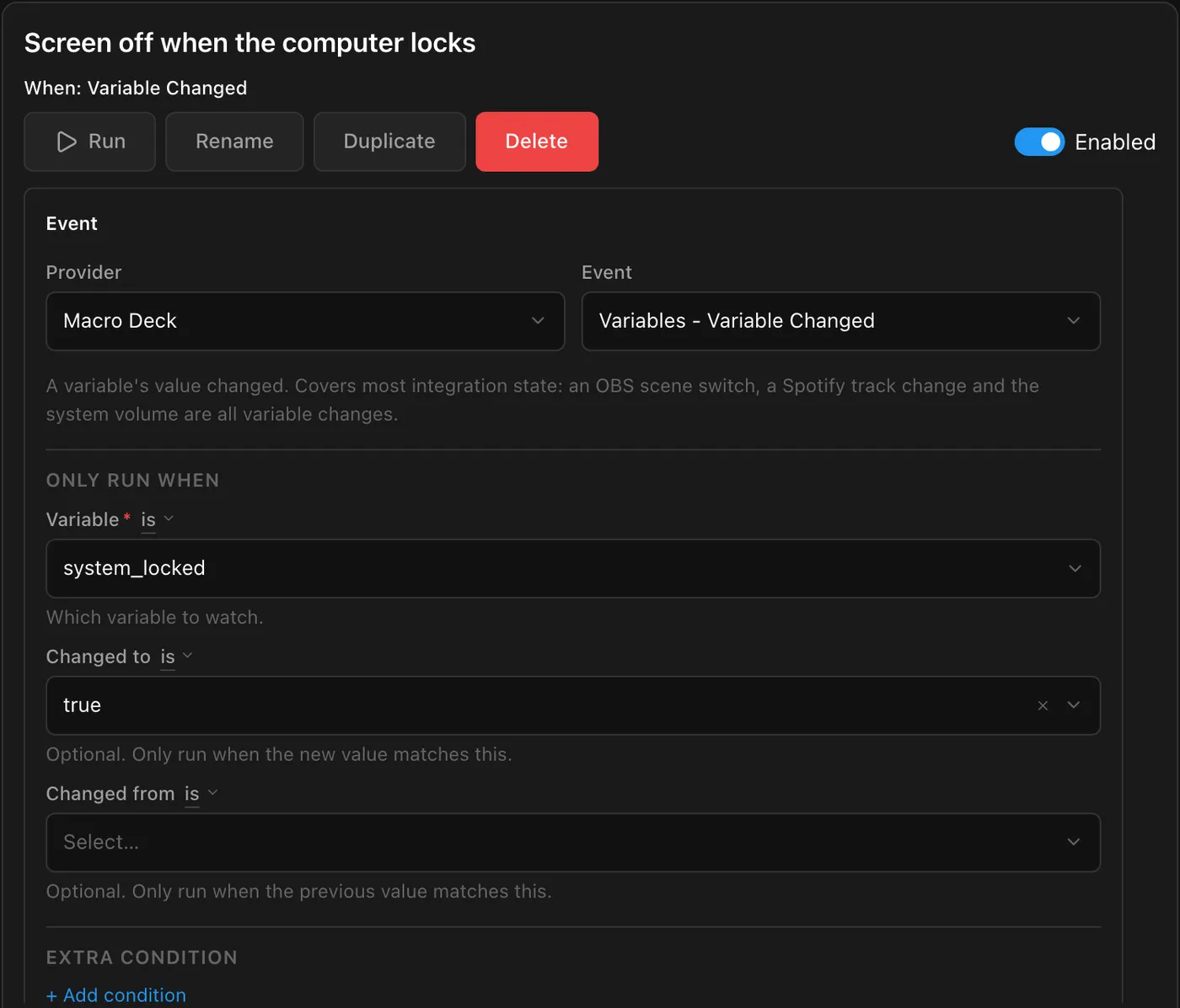
Turn screen on needs Background connection and Display over other apps in the app, so the tablet stays connected while its screen is off. Automations keep running while the computer is locked, even though buttons on the deck do not.
Turn the screen on when Macro Deck starts
Section titled “Turn the screen on when Macro Deck starts”When Macro Deck starts, the tablet is not connected yet, so Server Started is too early for it. Use the moment the app is back instead:
| Automation | Event | Only run when | Action |
|---|---|---|---|
| Screen on when the tablet is back | Macro Deck Companion > Device Ready | Device set to the tablet | Turn screen on |
Device Ready runs each time the app has connected and can take commands, also after a short loss of the network. An automation on Macro Deck > Client Connected works as well: a Companion action there waits a few seconds for the app to be ready.
On Android, Turn screen on when connected in the connection settings does this without an automation, and Turn screen off when disconnected turns the screen off again when the computer shuts down, which no automation can do: a computer that is off cannot send Turn screen off.
More ideas
Section titled “More ideas”- Brightness by time of day: a Schedule event at 22:00 runs Set screen brightness at 20%, another one at 08:00 sets it back. Macro Deck’s brightness applies while the deck is open; Brightness > Follow system in the connection settings hands it back to the device.
- A deck per orientation: Profile Changed runs Set orientation, for example landscape for a gaming profile with many buttons and portrait for a music profile.
- Battery at a glance: show the tablet’s Battery level in a widget label, for example on the deck of your phone, so you see when the tablet on the wall needs charging.
- Screenshots for sharing: a button with Take screenshot saves the deck as a PNG file on the computer, and Save path to variable puts the file’s path into a variable for the next action.
- Burn-in: a deck that is always on shows the same picture for hours. With Keep screen on, also set up a Screensaver for the device in Settings > Devices, a dark theme and a lower brightness.
- Wake the computer: turn on Wake this computer when connecting for a connection, and the app wakes the computer with Wake-on-LAN when you open its deck. To wake it without opening the app, use the power button on the host widget, a wake tile or shortcut on Android, or the Wake Computer action and control on iPhone and iPad; see Wake the computer.
- Several computers: open the decks of all your computers once, then switch between them with a three-finger swipe.
- iPhone and iPad: run Macro Deck scripts from the Shortcuts app, from Siri or from a Shortcuts automation, such as an NFC tag on your desk. See iPhone and iPad.