
Android
The Android app runs on Android 6 or later, on phones and tablets, including devices without Google Play.
Two versions
Section titled “Two versions”| Google Play | Without Google Play services | |
|---|---|---|
| Where from | Google Play | Macro Deck installs it over ADB, or you save the APK; see Install the Android app from Macro Deck |
| Runs on | Devices with Google Play | Any Android 6 device, such as Amazon Fire tablets |
| Updates | Google Play | Macro Deck, over ADB |
| License | Buy in the app, or from your computer | Only from your computer; see License and trial |
Both are the same app with the same settings. They cannot update each other: to switch, uninstall the one on the device first. Uninstalling removes the saved connections, so add your computers again afterwards.
Full screen
Section titled “Full screen”The app hides Android’s status and navigation bars, so a deck uses the whole screen. Swipe in from the edge of the screen to show them for a moment. The system back gesture leaves a deck.
Device control
Section titled “Device control”Macro Deck can do more with an Android device than show a deck: turn its screen on and off, bring the deck to the front, and take a screenshot of the whole screen. Android asks for a permission for each of these. Turn them on in the app’s settings under Device control; the app also asks by itself the first time Macro Deck needs one, in the app or with a notification such as Streaming Computer wants to turn off the screen.
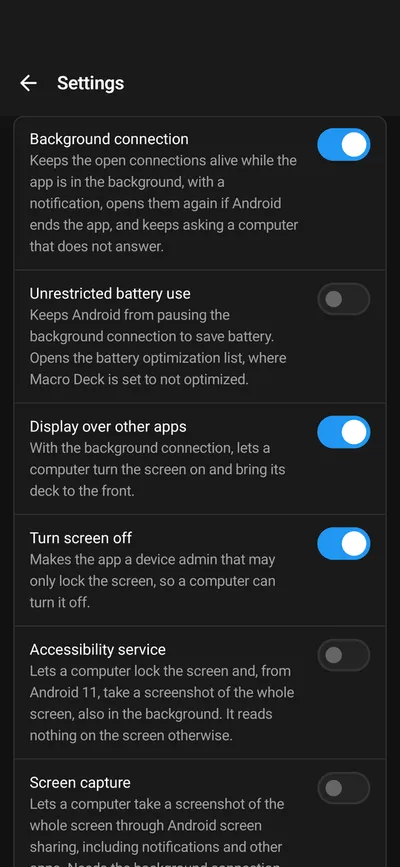
| Setting | What it allows | Needed for |
|---|---|---|
| Background connection | Keeps the connections alive while the app is in the background, with a notification. Reopens them if Android ends the app, and keeps asking a computer that does not answer. | Turn screen on, Bring to front, and anything else while the app is not in front |
| Unrestricted battery use | Stops Android from pausing the background connection to save battery. | A reliable background connection |
| Display over other apps | With the background connection, lets a computer turn the screen on and bring its deck to the front. | Turn screen on, Bring to front |
| Turn screen off | Makes the app a device admin that may only lock the screen. | Turn screen off |
| Accessibility service | Locks the screen and, from Android 11, takes screenshots of the whole screen, also in the background. It reads nothing on the screen otherwise. | Turn screen off (Android 9 or later), Take screenshot of the full screen |
| Screen capture | Screenshots of the whole screen through Android’s screen sharing. Needs the background connection. | Take screenshot of the full screen, without the accessibility service |
| Wi-Fi name | Reports the name of the Wi-Fi network while the app is in front. Android treats this as location access. | The Network name variable |
Turn screen off needs either the device admin or the accessibility service; one is enough.
The connection settings can use the same permissions without an automation: Turn screen on when connected needs Background connection and Display over other apps, Turn screen off when disconnected needs Background connection and the device admin or the accessibility service. See Connection settings.
Turning the screen on does not bypass a PIN, pattern, password or biometric lock. The deck asks you to unlock the device before you can use it when authentication is required. With no screen lock or only a swipe screen, you can use the deck as soon as the screen wakes. If Android is still finishing the wake transition, the app checks again and removes the unlock message once authentication is no longer required.
The accessibility service
Section titled “The accessibility service”The first time a deck opens, the app explains what its accessibility service is for and asks whether to turn it on. Not now skips it; you can turn it on later under Device control.
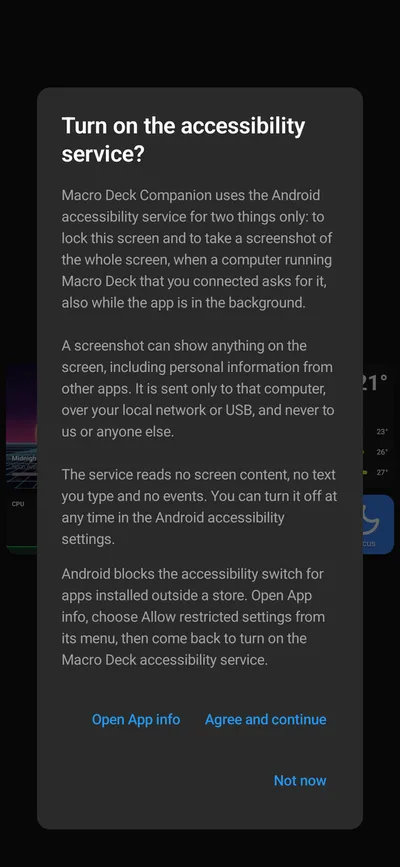
Android blocks this switch for apps installed outside a store, such as the version without Google Play. Open App info for Macro Deck, choose Allow restricted settings from its menu, and turn the service on again.
Brightness
Section titled “Brightness”When Macro Deck sets the brightness, it applies to the Macro Deck app while it is in front; the rest of the system keeps its own brightness. Brightness > Follow system in the connection settings returns to the system brightness.
Home screen
Section titled “Home screen”- Shortcuts: long-press the app icon to run one of your scripts, if you added it there, or to open one of your saved computers directly.
- Widget: the Macro Deck host widget opens the deck of the computer you choose for it. Its power button wakes the computer without opening the app; see Wake the computer.
- Wake shortcut: put a shortcut on the home screen that wakes a computer with a tap; see Wake the computer.
- Scripts widget: the Macro Deck scripts widget holds up to eight scripts of one computer and runs each with a tap. See Run scripts from other apps.
- Script shortcuts: put a script, with the values it runs with, on the home screen or in the menu of the app icon, which runs it with a tap. See Run scripts from other apps.
Quick Settings
Section titled “Quick Settings”Put a script in the Quick Settings panel as a tile and run it with a tap, from any app and, if you allow it, from the lock screen. See Run scripts from other apps.
A wake tile wakes a computer from the panel. See Wake the computer.
Tasker, MacroDroid and other apps
Section titled “Tasker, MacroDroid and other apps”Automation apps can run Macro Deck scripts with an intent, once you allow it in the settings under Automation. See Run scripts from other apps.
Android devices can connect over a USB cable in two ways: with USB debugging through ADB, or without USB debugging as a USB accessory. See Connect over USB.
Devices without Google Play
Section titled “Devices without Google Play”Amazon Fire tablets and other devices without Google Play services run the version without Google Play. For devices that work well as a deck, see Recommended devices.