
Install the Android app from Macro Deck
The Macro Deck Companion app turns an Android phone or tablet into a deck. You can get it from Google Play, or let Macro Deck install it on a device connected over ADB, for example a device without Google Play. Everything on this page is in Settings > Companion App.
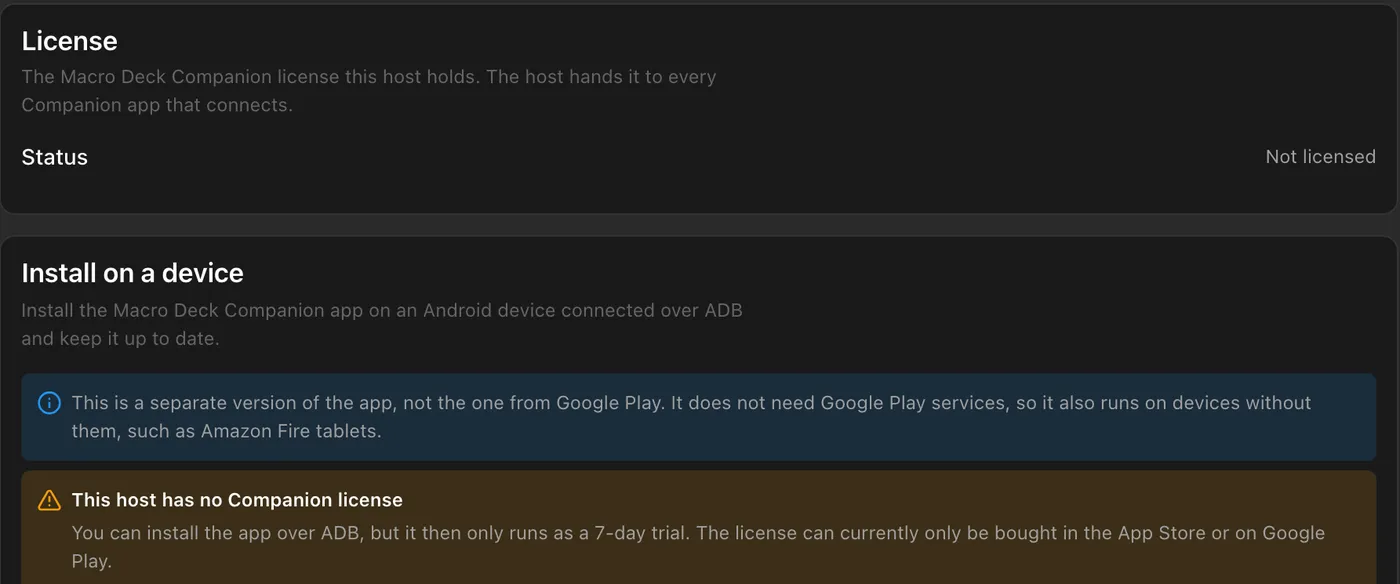
The app Macro Deck installs is a separate version, not the one from Google Play. It does not need Google Play services, so it also runs on devices without them, such as Amazon Fire tablets. A Google Play copy already on the device has to be uninstalled before Macro Deck can install its version.
License and trial
Section titled “License and trial”The page first shows whether this computer holds a Companion license. A license can currently only be bought in the App Store or on Google Play. Once one of your devices bought it, Macro Deck keeps the license and hands it to every Companion app that connects, including this version. See License and trial.
Without a license you can still install the app over ADB, but it then runs as a 7-day trial. The install section says so at the top.
Install the app
Section titled “Install the app”- Turn on ADB and connect the device, as described in Connect over USB. Until ADB is on, the page shows Open ADB settings instead of a device list.
- Open Settings > Companion App. The device appears under Devices connected over ADB with the state of the app on it.
- Click Install. Macro Deck downloads the latest version, checks that it is the genuine app signed by Macro Deck, and installs it. The device then shows Up to date.
| Shown for the device | Meaning |
|---|---|
| Allow USB debugging on the device | The device waits for you to confirm Allow USB debugging? on its screen. |
| Not installed | The app is not on the device. Install puts it there. |
| Update available | The device has an older version that Macro Deck installed. Update installs the latest one. |
| Up to date | The device has the latest version. |
| Installed from Google Play | Google Play installed the app and keeps it up to date. Macro Deck leaves it alone. |
| Not an Android device | An ADB device that does not run Android, such as a Car Thing. |
| Needs Android 6 or later | The Companion app does not support this Android version. |
Save the APK
Section titled “Save the APK”App file (APK) > Save APK saves the same checked APK to your computer. Use it to install the app yourself, for example with a file manager on a device where USB debugging is not available. Such an install is not listed under Devices connected over ADB and is not updated automatically.
Updates
Section titled “Updates”Macro Deck checks for a new version of the app regularly and whenever you open the page, and rereads the version on each device connected over ADB every few minutes. Check now checks right away.
- Update on a device installs the new version and opens the app again afterwards.
- Install updates automatically updates every device connected over ADB as soon as a new version is out, as long as Macro Deck installed the app there. If the app was running, Macro Deck opens it again after the update, and also when it cannot tell whether the app was running. Google Play installs are never touched.
Connected apps lists the Android Companion apps connected to this computer and marks those behind the latest version. Update them over ADB, or in Google Play if they came from there. A device can appear in both lists; its entry under Connected apps shows the new version once the app reconnects after an update.
If the install fails
Section titled “If the install fails”| Message | What to do |
|---|---|
| The app on the device comes from another source | The installed app was signed by someone else, for example a Google Play copy moved to the device. Uninstall it on the device, then install again. |
| The device blocked the install | Some phones, for example from Xiaomi, need Install via USB turned on in the developer options. |
| The device does not have enough free storage | Free up space on the device and try again. |
| The downloaded app failed its security check | The download was not the genuine app. Try again later. |
| The app could not be downloaded | The computer needs an internet connection to download the app. |