
App settings
Open the settings with the gear on the Connections screen. Settings for a single computer are in its connection settings instead.
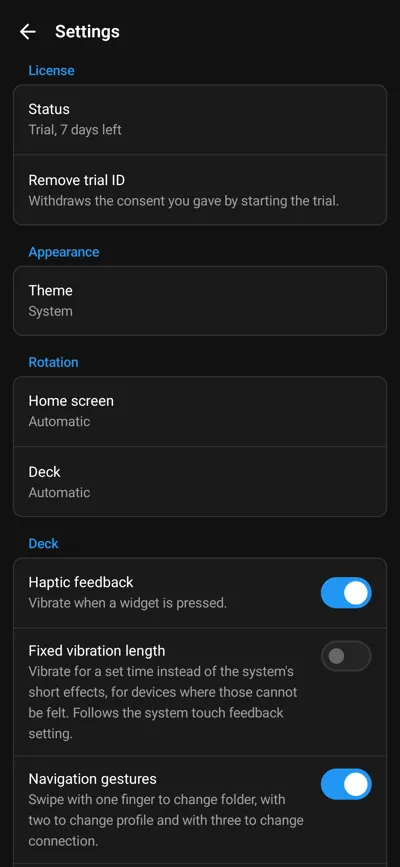
License
Section titled “License”| Setting | Does |
|---|---|
| Status | Licensed, Trial with the days left, Trial ended or Not licensed. Tap it for the license details, such as the License ID support asks for. |
| Buy license, Restore purchase | Buy the license in the store, or get back one you bought with the same store account. Not shown in the Android version without Google Play services. |
| Remove trial ID | Withdraws the consent you gave by starting the trial. A trial that is running keeps running. |
See License and trial.
Appearance and rotation
Section titled “Appearance and rotation”| Setting | Does |
|---|---|
| Theme | System, Light or Dark for the app’s own screens. The deck itself looks as it is set up in Macro Deck. |
| Home screen | Rotation of the Connections screen: automatic, portrait or landscape. |
| Deck | Rotation of every deck, unless a connection sets its own Deck rotation. |
Language
Section titled “Language”The app has no language setting of its own. It follows the language of your device and speaks the same languages as Macro Deck: Arabic, Brazilian Portuguese, Czech, Dutch, English, French, German, Hindi, Indonesian, Italian, Japanese, Korean, Polish, Russian, Simplified Chinese, Spanish, Traditional Chinese, Turkish and Ukrainian. Traditional Chinese is used for Taiwan, Hong Kong and Macau. For any other device language the app is in English.
To use the app in another language than the device:
- Android 13 or later: open the system settings, System, Languages, App languages and choose Macro Deck.
- iPhone and iPad: open the system Settings, scroll down to Macro Deck and choose Language.
- Older Android versions: the app follows the device language.
In Arabic the app’s screens read from right to left. Your decks never change direction: widgets stay where you placed them, in every language.
The text inside a deck, such as the labels of widgets and plugins, comes from Macro Deck itself and follows the language set there.
| Setting | Does |
|---|---|
| Haptic feedback | Vibrates when you press a widget. On by default. |
| Fixed vibration length | Android only. Vibrates for a set time instead of the system’s short click effects, for phones and tablets whose vibration motor cannot render those, so a press is not felt. Off by default. Like the normal haptics it follows the system’s touch feedback setting, so it stays silent while touch feedback is off in Android’s settings. |
| Vibration length | Android only, shown while Fixed vibration length is on. 20 to 200 ms in steps of 10, 80 ms by default. Letting go of the slider plays the new length once. Try a longer one if a press is still hard to feel. |
| Navigation gestures | Swipe with one finger to change folder, with two to change profile and with three to change computer. On by default. |
| Keep screen on | Never, While a deck is open or Always. Never is the default. The app warns about burn-in first: on OLED screens a deck that never changes can leave a permanent ghost image. A dark theme and lower brightness reduce the risk. |
| Icon resolution | The size deck icons are loaded in: Automatic, 128 px, 256 px or 512 px. Automatic is the default and picks the size from how large each icon is drawn, so a phone usually gets 128 px and a tablet or a large widget 256 px or 512 px. A smaller size loads faster, a larger one looks sharper. With Automatic the row shows the sizes the deck you last opened used. Only icons change, not artwork such as album covers. A Macro Deck version without this feature always sends 256 px. |
Device
Section titled “Device”Device name is the name this phone or tablet has in Macro Deck’s Settings > Devices and in the device list of automations. A computer shows the new name the next time this device signs in to it.
Connections
Section titled “Connections”| Setting | Does |
|---|---|
| Find hosts on the network | Looks for Macro Deck on the local network and lists it under Found on this network. Without it, you add a computer by QR code or address. |
| Detect USB connection | Lets the app reach Macro Deck through a USB cable. See Connect over USB. |
| Connect on opening | The computers the app opens by itself when it starts, in order: it opens the first that answers. USB connection can be one of them. |
Automation
Section titled “Automation”| Setting | Does |
|---|---|
| Allow external automation | Lets other apps run your scripts with an Android intent or a run-script link. Off by default. |
| Automation key | The key every request has to carry. Show, Copy key and Generate new key, which shows the new key and stops every automation that uses the old key. |
| Scripts | Each computer’s scripts with their IDs. Tap a script to copy its link or, on Android, its intent details, or to create a shortcut for it or add it to Quick Settings. |
| App icon menu | Android only: the scripts you added to the menu of the app icon, each with a button to remove it. Shown once there is one. |
| Quick Settings tiles | On Android, the scripts you put in the Quick Settings panel, shown once you added one. Each has Run while the device is locked, off by default, and can be removed here. |
See Run scripts from other apps.
Only on Android: Device control
Section titled “Only on Android: Device control”These let Macro Deck control the phone or tablet beyond the deck. Each one asks Android for a permission; see Android for what each is for.
- Background connection
- Unrestricted battery use
- Display over other apps
- Turn screen off
- Accessibility service
- Screen capture
- Wi-Fi name
Only on iPhone and iPad: Battery
Section titled “Only on iPhone and iPad: Battery”While Low Power Mode is on, the settings say so: iOS then reduces performance and network activity, which can slow a deck down. Turn Low Power Mode off in Control Center or under Battery in the Settings app.
Feedback, About and Legal
Section titled “Feedback, About and Legal”- Discord and GitHub Issues: ask the community and report bugs.
- Share diagnostics: shares recent connection events and the addresses of your computers, for a bug report. It never contains passwords or tokens.
- About: version, build and Open source licenses.
- Legal: imprint, privacy policy and terms of service.