
Publish an icon pack
An icon pack needs no repository. The version is the file you upload.
Start this version -> upload .macroDeckIconPack -> Add to submission -> Submit for Review1. Export the pack
Section titled “1. Export the pack”In Macro Deck, open Icon packs, open the pack’s menu and select Export pack. You get a
.macroDeckIconPack file.
Icons keep their appearances in the export, so one icon can ship light,
dark, animated and static versions. In pack.json each appearance is nested under its icon’s entry, in
appearances, with its traits (for example {"colorScheme": "dark"}, or {"variant": "outlined"} for a style the user named), and its master is a file of its own
in files. A Macro Deck without appearances imports the pack and shows the default images.
Before you export, open the pack’s menu, select Edit pack and set AI-created icons. The setting is
saved in the exported pack’s pack.json as the same ai declaration plugins
use. Not declared is never treated as free of AI.
Size limits
Section titled “Size limits”A pack holds at most 29,996 files, pack.json included, and a pack.json of at most 32 MiB minus 64 KiB. Every icon takes one file,
its master image, plus one more file for each of its appearances, and pack.json lists each icon and each file. The two limits apply separately: icons with
long non-Latin names fill pack.json well before the file limit.
The smaller sizes a deck shows are not part of the pack: the Macro Deck that installs it creates them from each master the first time an icon is shown at that size. Packs exported by Macro Deck 3.0.0-beta.13 and older also carry a file per downscaled size; they still import, and Macro Deck ignores those files and creates its own. Macro Deck 3.0.0-beta.13 and older do not create sizes, so they show the full master of a pack, profile or widget exported by a newer version at every size. On a device, a large animated icon can then be too big to show.
Macro Deck refuses to export a pack above either limit, so split a larger collection into several packs.
The limits leave room for the certificate files and the signature that the Store adds when it signs the pack,
so the signed pack stays within 30,000 files and 32 MiB, which is what Macro Deck imports. The room assumes
pack.json as Macro Deck writes it; a pack.json edited by hand can grow when it is signed.
IconPackArchiveLimits in MacroDeck.Plugin.Packaging carries these numbers for tools.
Macro Deck 3.0.0-beta.13 and older import at most 10,000 files per pack.
2. Create the Project
Section titled “2. Create the Project”Create a Project of type Icon Pack and fill in General Information. Upload the Icon under Images; an icon pack cannot be submitted without one.
3. Start a version
Section titled “3. Start a version”Open Releases.
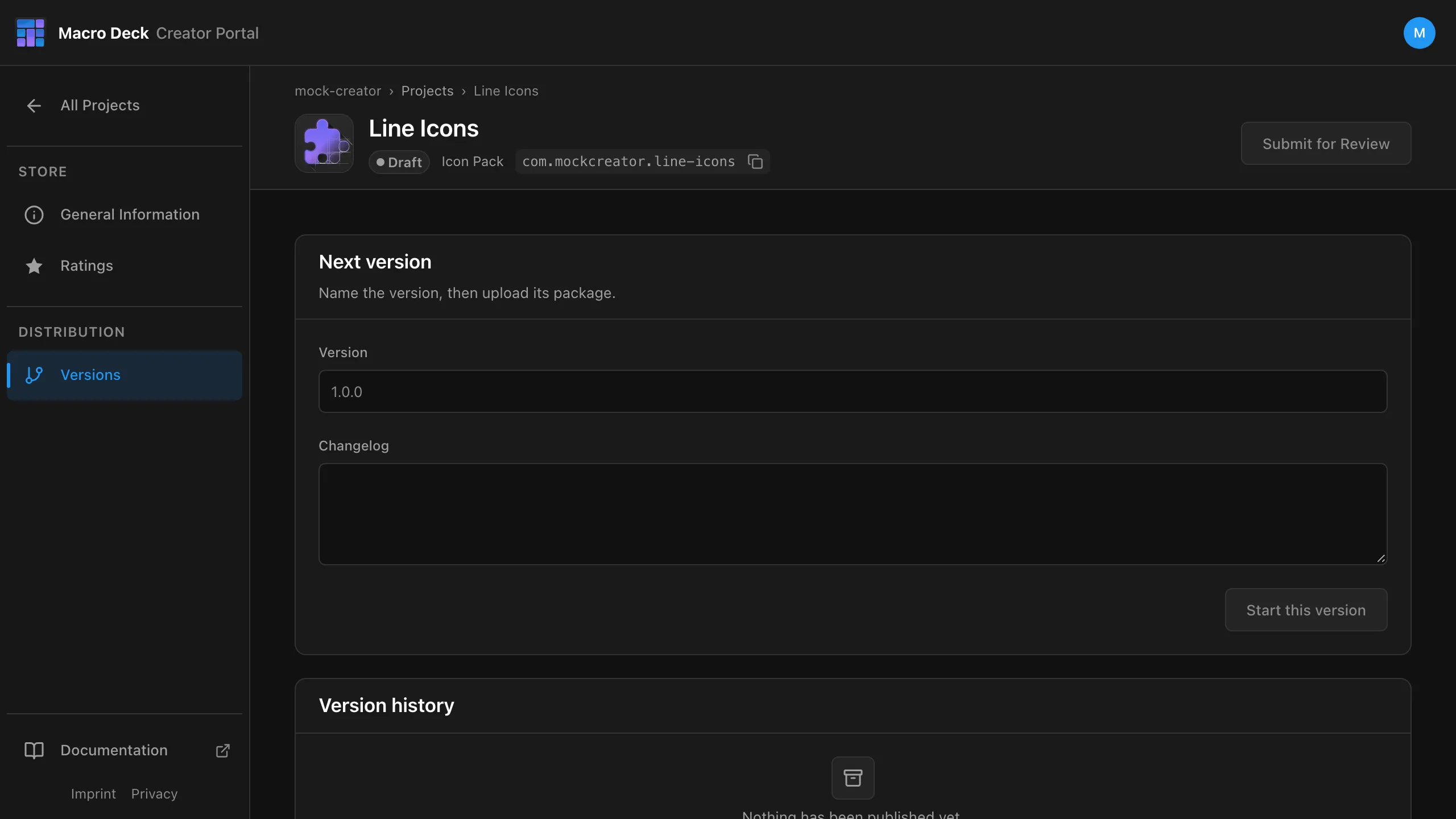
| Field | Example |
|---|---|
| Version | 1.0.0 |
| Changelog | First release: 120 line icons. |
Select Start this version. Only one version can be open at a time.
4. Upload the package
Section titled “4. Upload the package”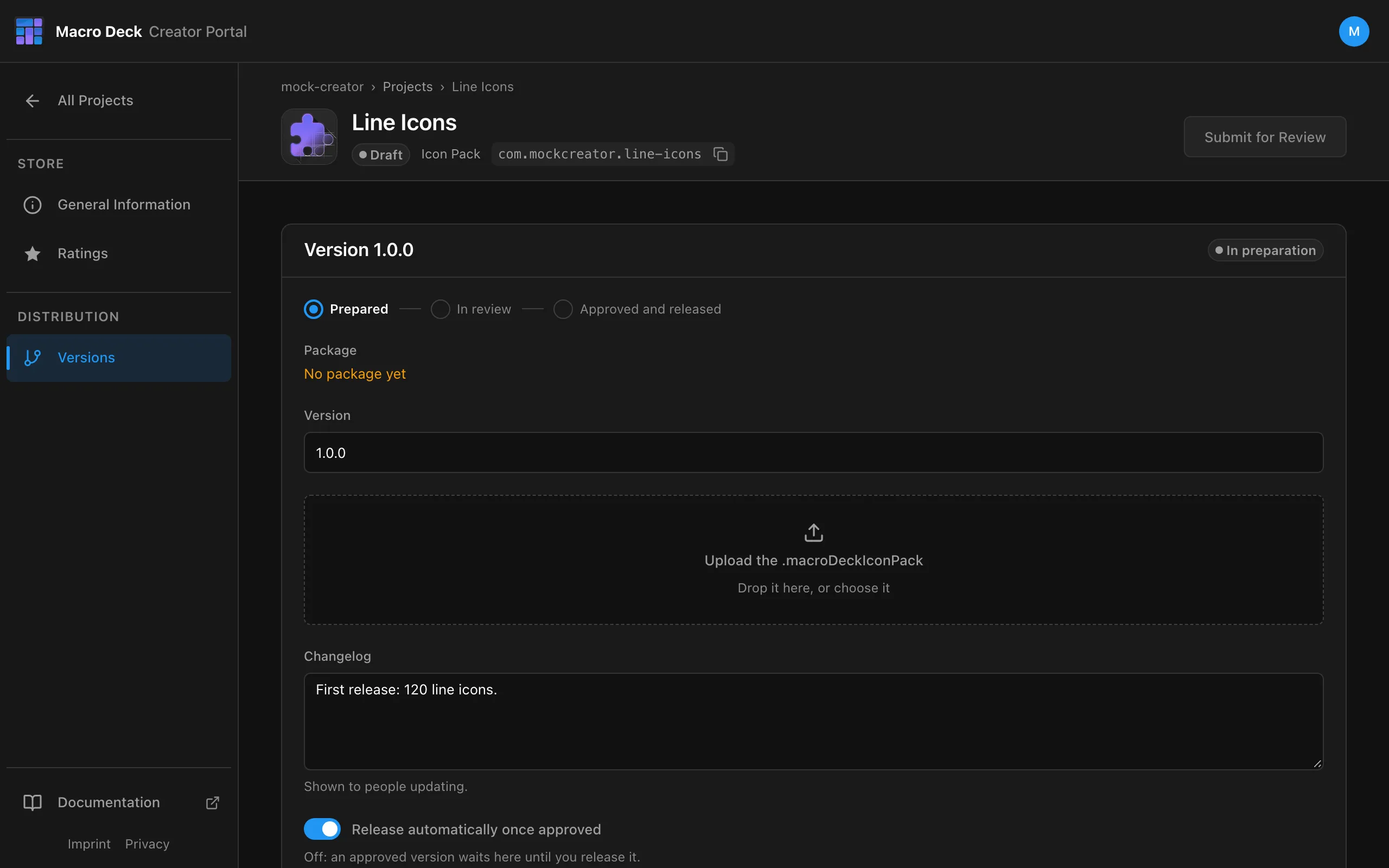
Drop the .macroDeckIconPack on the upload area or choose it. The portal checks size, checksum and
contents before the version can be submitted. Until it is submitted, you can replace the file.
5. Submit
Section titled “5. Submit”Select Add to submission, then Submit for Review in the Project header. Continue with Review and release.
Release an update
Section titled “Release an update”Export the pack again, then Start this version with a higher version, for example 1.1.0, upload
and submit. A declined version stays editable: replace the file and submit it again.