
Projects and Store listing
Create a Project
Section titled “Create a Project”On the Dashboard, select Create Project.
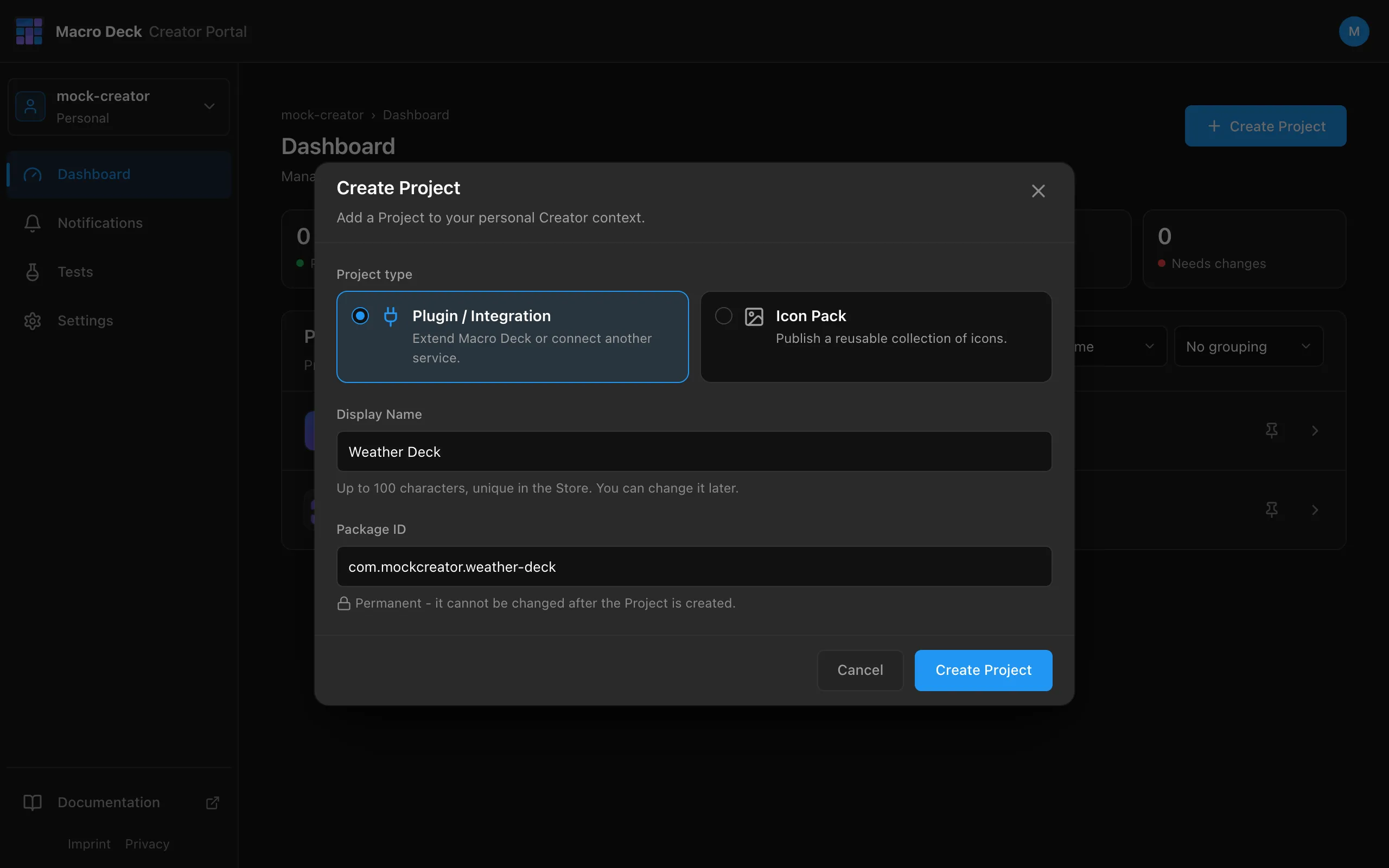
| Field | Example | Notes |
|---|---|---|
| Project type | Plugin / Integration | Cannot be changed later. |
| Display Name | Weather Deck |
Up to 100 characters, unique in the Store. Can be changed later. |
| Package ID | com.example.weather-deck |
Permanent. For a plugin it must equal the id in its manifest.json. |
A Project starts as Draft. Nothing is public until a review is approved.
Store listing
Section titled “Store listing”General Information holds what the Store shows about the Project.
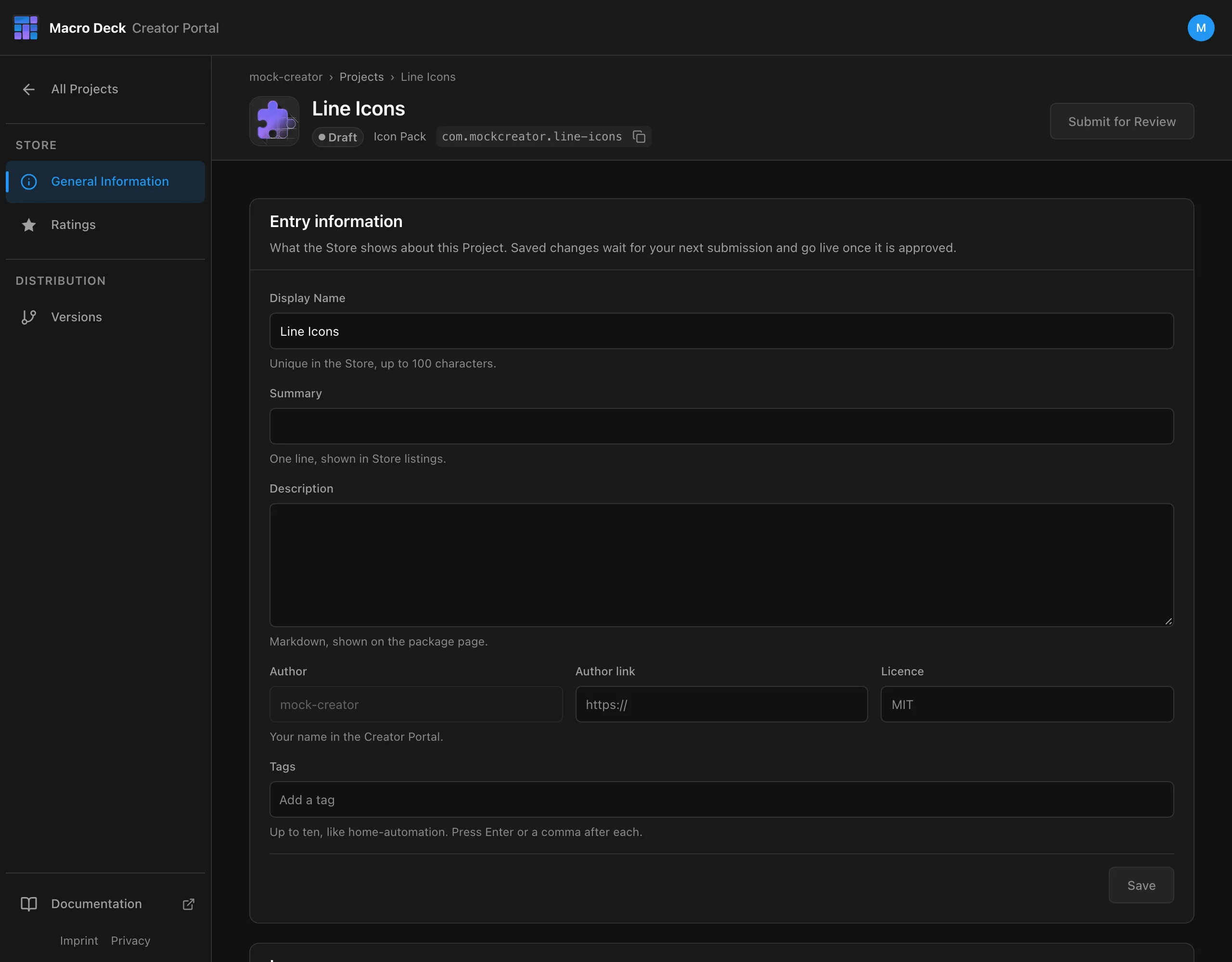
| Field | Example |
|---|---|
| Summary | Buttons that greet your deck. |
| Description | GitHub-flavoured Markdown, shown on the package page. https images are shown; any other image shows its alt text |
| Author link | https://github.com/example |
| Licence | MIT |
| Tags | utilities, home-automation (up to ten) |
- Save stages the changes. They go live with your next approved submission.
- A plugin’s description, publisher and licence come from its
manifest.json, so the portal only asks for the Summary and Tags. - The Store listing falls back to the Display Name when there is no Summary.
Images
Section titled “Images”| Image | Plugin | Icon pack |
|---|---|---|
| Icon | From manifest.json, added when you create a release |
Uploaded under Images |
| Screenshots | Up to ten | Up to ten |
A Project cannot be submitted without an icon. New images wait for review like the listing text. Reordering screenshots that were already approved takes effect immediately.
Transfer a Project
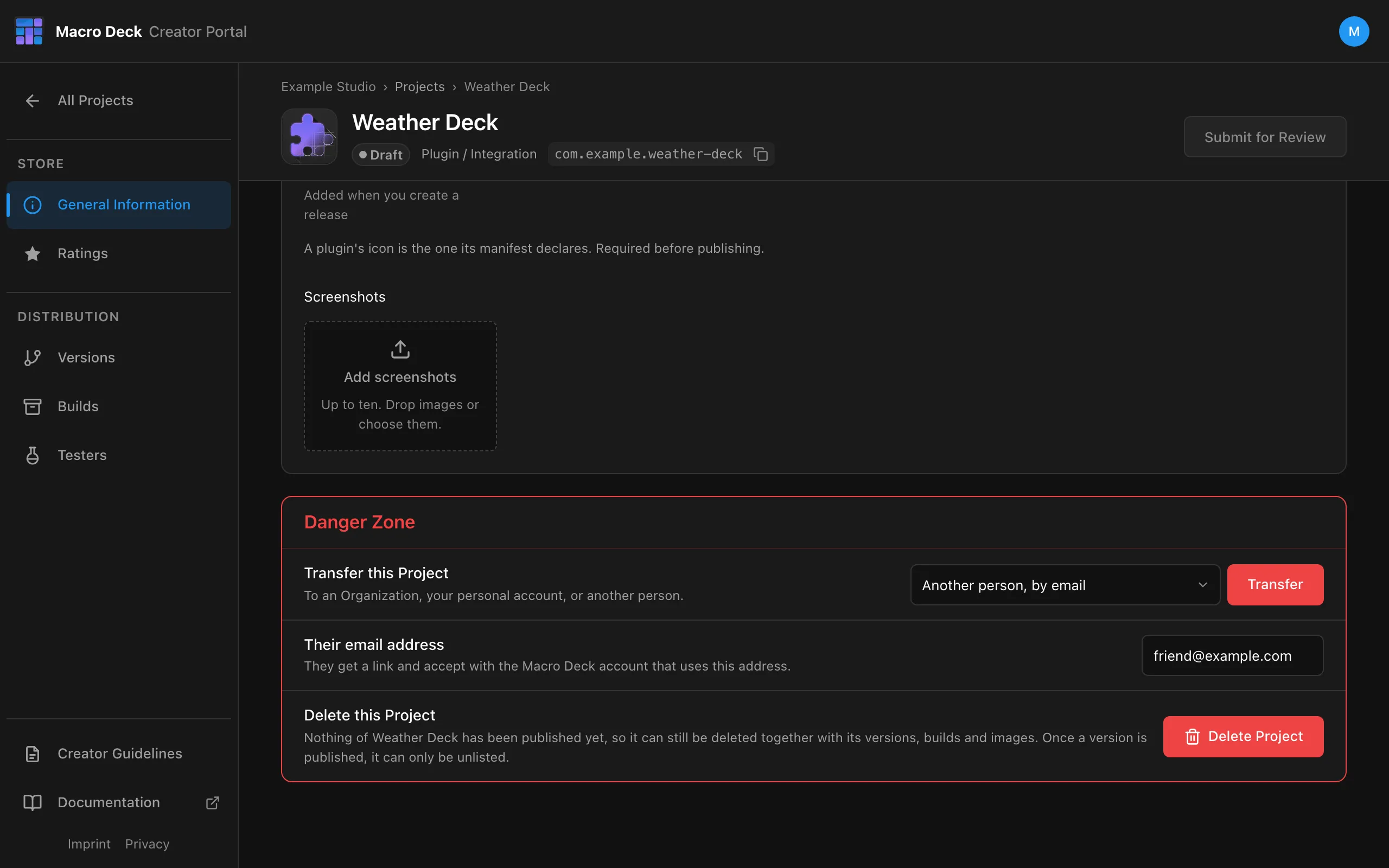
Section titled “Transfer a Project”Under General Information, the Danger Zone transfers a Project to another publisher. Only its owner can do this: you for your own Projects, the Owner for an Organization’s. Choose where it goes, select Transfer, and confirm with the Project’s Display Name. The confirmation spells out what changes.
| Where to | What happens |
|---|---|
| An Organization you own | It moves at once. |
| Your personal account (from an Organization you own) | It moves at once. |
| An Organization you are a Member of | Its Owner has to accept. Once they do, the Owner decides over the Project; you keep working on it as a Member. |
| Another person, by email | They get a link and accept with the Macro Deck account that uses this address. You lose access once they do. |
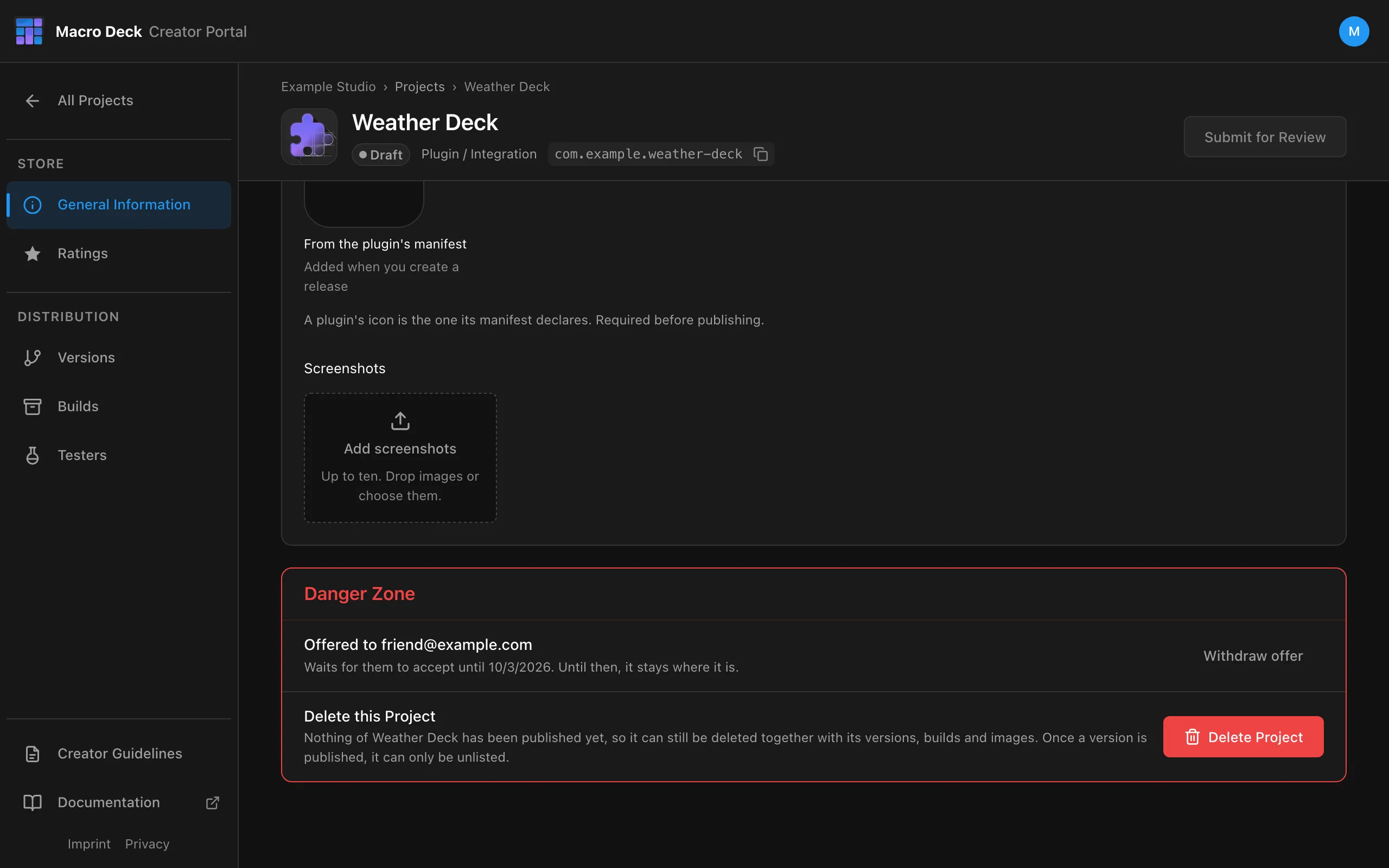
Until an offer is answered, the Project stays where it is and the Danger Zone shows it. Withdraw offer takes it back. An offer expires after 14 days, and you are notified when it is accepted or declined.
After a transfer:
- The Package ID stays the same. Installed copies of a plugin that was released signed refuse releases signed with the new publisher’s key, because Macro Deck never lets another publisher replace an installed signed plugin: their users have to uninstall and reinstall it.
- The Store shows the new publisher from the next release on, and releases are signed with the new publisher’s key.
- For a plugin, the next build must name the new publisher as
publisher.namein itsmanifest.json. - It leaves the previous context. Everyone with access there, an Organization’s Members included, loses it.
A transfer is refused while a review is in progress, an approved version waits to be released, or a Store change is still running.
Receiving a Project
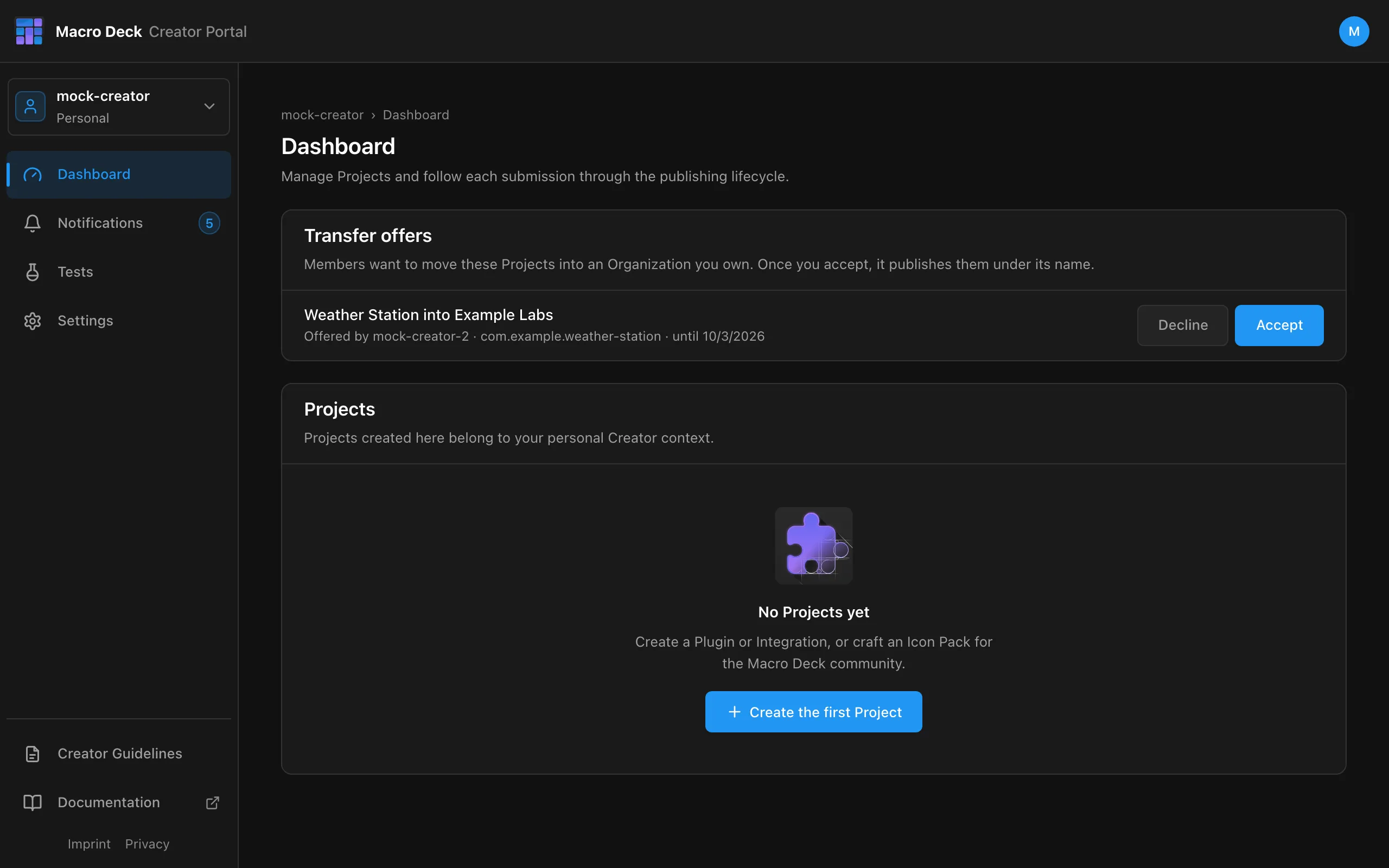
Section titled “Receiving a Project”An Owner finds offers for their Organization on the Dashboard under Transfer offers, where they Accept or Decline them.
An offer to a person arrives as an email with a link. It only works for the Macro Deck account whose verified email address it was sent to, and that account needs a Creator profile.
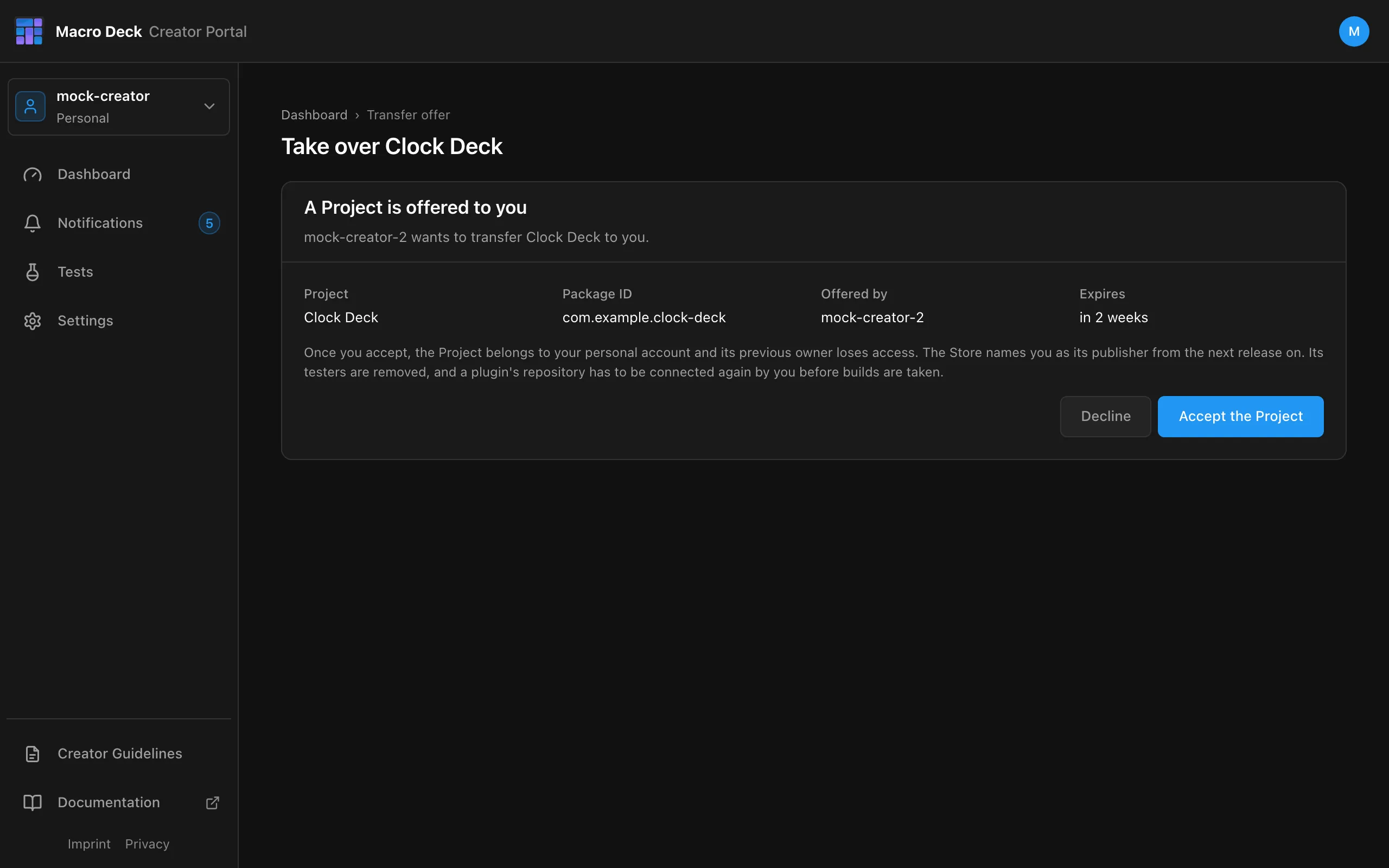
When a Project comes to you from another person, nothing of theirs comes along:
- Its testers and open tester invitations are removed.
- A plugin’s repository has to be connected again by you, with your own GitHub access, before builds are taken from it. If the repository is not yours on GitHub yet, have its previous owner transfer it to you there first.
- Builds uploaded before the transfer cannot become your version; upload a new one.
- It cannot be transferred to a person while a version is in preparation.
Delete or unlist
Section titled “Delete or unlist”- Delete Project works until a version has been published. It removes the versions, builds and images.
- After that, a Project can only be unlisted: it disappears from the Store, but installed copies keep working and the Package ID stays taken. You can list it again later.